Zero-touch deployment works. When the prerequisites are right, a new Mac ships to an employee, they open the box, sign in with their Managed Apple Account, and within 20 minutes, every app is installed, FileVault is enabled, the VPN is configured, and the dock is set. IT has not touched the device. The employee has not spoken to anyone. That promise is real, and we have delivered it enough times to mean it. What we have also done enough times is troubleshoot what happens when one of the three prerequisites is not in place. That is where this article is useful.
Zero-touch deployment requires three things to work together: Apple Business as the enrollment authority, a DMS (Device Management Service, formerly MDM) as the policy and configuration layer, and devices procured through the right channel so their serial numbers register automatically. When all three are in place and tested before any device ships, the experience is as good as advertised. When one is missing or assumed rather than confirmed, the failure is silent and the employee is the first to find out.
What zero-touch deployment actually involves
When a device is purchased through Apple directly or an Apple Authorised Reseller with Apple Device Enrolment configured, its serial number is assigned to the organisation’s Apple Business account before it leaves the warehouse. On first boot, the device contacts Apple’s activation servers, recognises the organisation, and applies the Blueprint or configuration profile assigned to it. The DMS delivers the apps, security policies, and restrictions. The employee provides their Managed Apple Account credentials. That is the sequence. Each step depends on the previous one. Missing prerequisites are not edge cases; they are the most common source of enrollment failures we see, and they are always discovered at the worst possible moment: when the employee is already unpacking the box.
What clients expect versus what is actually required before a device ships
The procurement channel problem: why buying from the wrong supplier breaks everything
The single most common setup failure we encounter is devices purchased outside the Authorised Reseller network. An IT lead finds a better price from a third-party retailer, orders 20 MacBooks, and assumes Apple Business will pick them up. It will not. Devices purchased outside Apple Direct or an Apple Authorised Reseller with ADE configured do not register automatically in Apple Business. Every device requires manual enrolment via Apple Configurator, which means physically connecting each Mac to another Mac, running the enrolment workflow, and then starting again. At 20 devices, that is a day of avoidable work. We have seen this happen on deployments of 40 and 60 devices. The price difference on the hardware was meaningless by the time the labour was factored in.
The fix is simple: confirm the supplier is an Apple Authorised Reseller before placing the order. Not after. The Apple Partner Finder makes this a two-minute check.
The Apple Business verification gap: what takes longer than anyone expects
New organisations setting up Apple Business for the first time go through a verification process before the account becomes fully active. In most cases this is completed within a day or two. In some cases; particularly for newly incorporated businesses or those with recent address changes, it takes longer. We have seen verification take up to a week. If devices ship before verification is complete, zero-touch enrolment fails silently. The device powers on, does not recognise any organisation, and proceeds through Apple’s standard setup assistant. The employee gets an unmanaged Mac. Recovering from this requires wiping and re-enrolling the device.
The fix: verify Apple Business account status before ordering a single device. Build the account setup into the project timeline, not the week before delivery.
The DMS configuration that has to exist before the first device is ordered
The Blueprint or configuration profile that defines what a device does on first boot must be built, tested, and confirmed before any procurement happens. For a 20-device deployment with an existing DMS and a pre-verified Apple Business account, allow one week of configuration and testing before ordering. For a first deployment, new DMS, new Apple Business account, and new configuration from scratch, allow two to three weeks. The configuration work is not complex, but it requires testing on a physical device to confirm that the full sequence works end-to-end. A Blueprint that looks correct in the admin console can still fail to deliver a specific app if that app’s licence has not been assigned in Apple Business. That failure only surfaces when you test it, which is why testing before ordering is not optional.
The three things that most commonly go wrong mid-deployment
The app that is not in Apple Business and holds up every device
If an application required on every device is not purchased through Apple Business’s app licence management, two things happen: it either does not install silently, requiring the employee to find and install it manually, or it installs without a valid licence, generating an activation error on every device simultaneously. We have seen this most often with creative tools, specialist industry software, and legacy applications that have not been added to the organisation’s Apple Business app catalogue before deployment begins. The result is a wave of identical support tickets on the same morning.
The fix: build the complete app list before finalising the Blueprint, purchase every licence through Apple Business before any device ships, and test silent installation of each app on a pilot device before the full rollout.
Network dependency: what happens when the employee’s home Wi-Fi blocks MDM traffic
Zero-touch enrolment requires the device to reach Apple’s activation servers and the DMS server on first boot. In most home environments, this happens without friction. In some, it does not. Consumer-grade routers with aggressive firewall settings, certain ISP-managed home hubs, and corporate guest networks with restrictive outbound filtering have all caused enrolment failures in deployments we have managed. The device boots, cannot reach the required servers, times out, and either presents an error or proceeds through setup in an unmanaged state.
Two fixes work reliably. The cleaner option is to include a mobile data fallback instruction with every shipped device: if enrollment does not complete on home Wi-Fi within five minutes, connect to a mobile hotspot and restart the setup assistant. The more robust option for larger deployments is to embed a pre-configured Wi-Fi profile in the setup sequence using Apple Configurator before shipping, which ensures the device can reach the DMS from a known-good network before the employee receives it.
The user who powers on before IT is ready
In any deployment of more than ten devices, there is at least one employee who receives their Mac earlier than expected and powers it on before the DMS configuration is finalised. The device enrols against whatever Blueprint is live at that moment, which may be incomplete, misconfigured, or assigned to the wrong device group. Recovering from a partial enrolment requires a full factory reset and re-enrolment, which adds time and creates a poor first-day experience for the employee who did nothing wrong.
The fix is communication, not technology. Every employee in a deployment should receive a clear message, with the device or before it arrives, stating exactly when to power on. “Do not open or power on this device until you receive a separate email confirming your setup is ready” is a single line that prevents a recoverable but avoidable problem.
What the employee experience actually looks like when it works
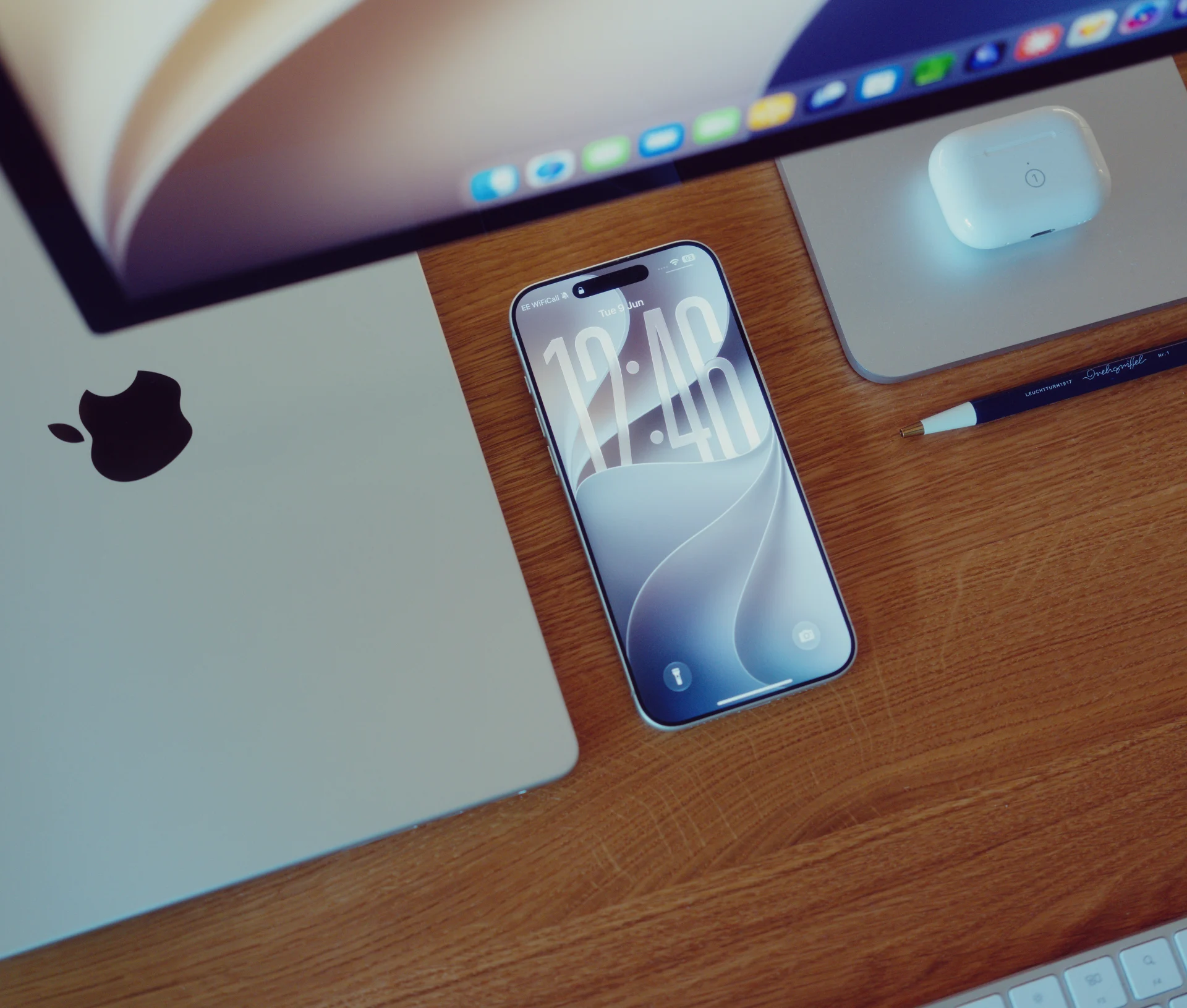
When the procurement channel is confirmed, the Apple Business account is verified, the Blueprint is tested, and the app licences are in place, this is what happens. The device arrives. The employee opens the box, connects to Wi-Fi, and signs in with their Managed Apple Account. The setup assistant completes in a couple of minutes. In the background, the Blueprint applies, apps begin installing, FileVault is enabled, the VPN configures, and the dock and wallpaper are set according to the organisation’s standard. Inside 20 minutes, the employee has a fully configured, fully managed Mac, identical in setup to every other device in the fleet, with no IT involvement and no support ticket. That is the payoff, and when the groundwork is done, it consistently delivers it.
What zero-touch does not solve, and where you still need a partner
Configuration design: someone has to decide what goes on every device
Zero-touch solves provisioning. It does not decide what the provisioning should be. Someone has to work out which apps belong on the standard build, which restrictions are appropriate for the organisation’s risk posture, how the device groups map to roles and departments, and what the exception process is for edge cases. Getting this right at the start is significantly less disruptive than redesigning it across an active fleet six months later.
Ongoing management: enrolment is the beginning, not the end
Enrolment is the entry point to a managed fleet, not the destination. Once devices are enrolled, the DMS needs to be maintained: Blueprint updates, app version management, OS update policies, and compliance reporting all require ongoing attention. Zero-touch gives you a clean start. What you do with the fleet after day one determines whether it stays that way.
The edge cases that need a human
Zero-touch handles the straightforward case well. It does not handle the employee in a rural area with unreliable connectivity, the device that ships to the wrong address and gets powered on by someone else, or the application that requires a manual licence activation regardless of how it is deployed. These are not reasons to avoid zero-touch deployment, they are reasons to have a partner who has seen them before and knows what to do when they occur.
In our experience, the value of working with a partner on a zero-touch deployment is not in pressing the button. It is in the configuration work, the procurement guidance, and the pre-flight testing that make the button reliable. The setup is straightforward when it is done in the right order. When it is not, the device is already in the employee’s hands before anyone realises something is wrong.
If you are planning a Mac deployment and want zero-touch to work the first time, Dr Logic handles the configuration, procurement guidance, and testing before a single device ships.
Related articles
- Apple Business Now Includes Free MDM: What It Does, What It Doesn’t, and When Your Business Needs Jamf
- Do You Still Need a Third-Party DMS Now That Apple Business Is Free?
- Apple Business DMS vs Jamf vs Addigy: Which Is Right for Your UK Mac Fleet?
- What Happens to a Mac When an Employee Leaves: The Offboarding Steps Most Businesses Skip
FAQs
What do you need in place before zero-touch deployment will work?
Three things must be confirmed before any device is ordered: Apple Business account verification must be complete, the DMS Blueprint or configuration profile must be built and tested on a physical device, and devices must be procured through Apple Direct or an Apple Authorised Reseller with Apple Device Enrolment configured. Missing any one of these means the deployment will require manual recovery work after devices ship.
Why do devices purchased from third-party retailers not work with zero-touch deployment?
Zero-touch deployment requires a device’s serial number to be registered in Apple Business before the first boot. This registration happens automatically only when devices are purchased through Apple Direct or an Apple Authorised Reseller with ADE configured. Devices bought elsewhere do not register automatically and require manual enrolment via Apple Configurator, which negates the zero-touch workflow entirely.
What happens if an employee powers on their device before the DMS configuration is finalised?
The device enrols against whatever Blueprint is live at the moment of first boot. If the configuration is incomplete or the device is assigned to the wrong group, the employee receives a partially configured Mac. Recovering from this requires a full factory reset and re-enrolment. The most reliable prevention is clear communication to employees with a specific date and time after which the device is safe to power on.