Every Mac has its quirks. Most of them are completely normal, but nobody tells you that, so you end up whispering your question into Google at 11pm instead of asking your IT team, because surely everyone else already knows this and you’ll look silly for asking.
You won’t. As an Apple Premium Technical Partner supporting SMEs across the UK, we hear these questions constantly, usually prefaced with “this is probably a stupid question, but…”
It isn’t. Here are the answers to the odd, oddly common things your Mac does that nobody ever explains.
“Why does my MacBook fizz while it’s charging?”
This one catches people out because it sounds like something is wrong. It isn’t (save for the later caveat).
Some users report a tingling or micro-vibration sensation when touching the aluminium case while it’s charging. This is usually down to grounding: if the plug or extension lead you’re using doesn’t have a proper earth connection, a small (as in, really miniscule) amount of current leaks through the metal chassis at a low capacitance from the MacBook’s internal transistor. It’s looking to earth itself, so passes this ultra-miniscule charge through your skin and into the ground.

A genuine Apple charger and a properly earthed three-pin socket almost always sorts it. You can also experiment with sitting at your desk and wearing wellies while you stroke your laptop, which will stop the vibration (since you’re now no longer a grounding the charge) and will also ensure your colleagues keep a respectful distance, which, depending on your office, may or may not be a bonus.
When to actually worry: if it comes with a loud buzzing sound, creates visible sparks or literally shocks you. It goes without saying that this is your cue to stop using the adapter and get it checked, rather than a quirky Mac fact for the dinner table.
“Why is ‘kernel_task’ eating all my CPU when I’m not even doing anything?”
Open Activity Monitor on a warm day and you might see a mysterious process called kernel_task sitting at the top, apparently hogging your entire processor. It looks alarming, but it’s actually your Mac protecting itself.
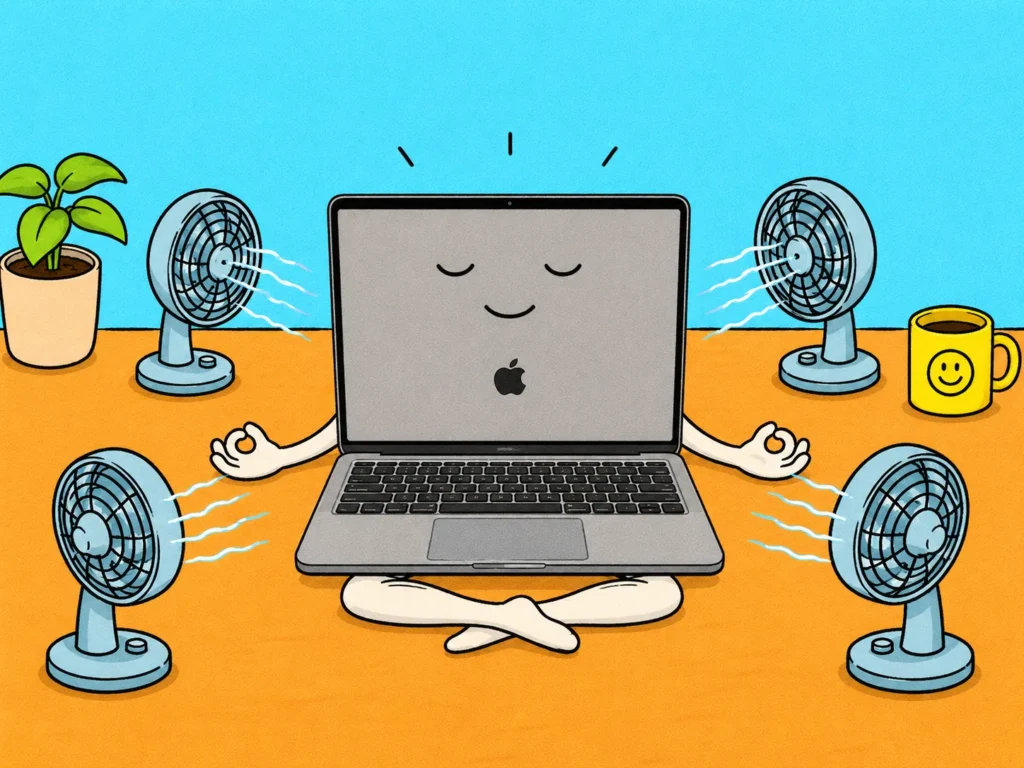
kernel_task isn’t a rogue app; it’s part of macOS itself, and one of its jobs is temperature management. When your CPU starts running hot, macOS deliberately makes processing power less available to whatever’s causing the heat, and kernel_task shows up in Activity Monitor as the thing “using” that reserved capacity. It’s not actually doing the work; it’s holding the door shut so nothing else can.
In other words, seeing kernel_task spike usually means your Mac is overheating (or close to it), not that something’s broken. Common culprits are poor ventilation, a laptop stand blocking the vents, too many demanding apps running at once, or dust build-up inside an older machine.
Clear some airflow, close a few resource-hungry tabs or apps, and it should settle down on its own.
“What are the coloured dots next to the Control Centre icon?”
Green, orange, and occasionally purple: these small dots appear in the menu bar and they’re one of macOS’s quieter privacy features.
- Green means an app is currently using your camera.
- Orange means an app is currently using your microphone.
- Purple means your system audio is being recorded (screen recording with sound, for example).
They exist so nothing can access your camera or mic in the background without you knowing. Click the Control Centre icon when you see one and macOS will tell you exactly which app is responsible. If a dot appears and you’re not on a call or recording anything, that’s worth investigating: check Screen Time or System Settings > Privacy & Security to see which app has permission, and revoke it if it shouldn’t be there.
“Why does my Mac tell me to ‘eject’ a drive before I unplug it? Can I not just yank it out?”
Because your Mac may still be quietly finishing something. When you copy files to an external drive or USB stick, macOS doesn’t necessarily write every byte to the drive the instant you drag the file across; some of that data sits in memory briefly before it’s fully committed to the disk, for speed and efficiency.
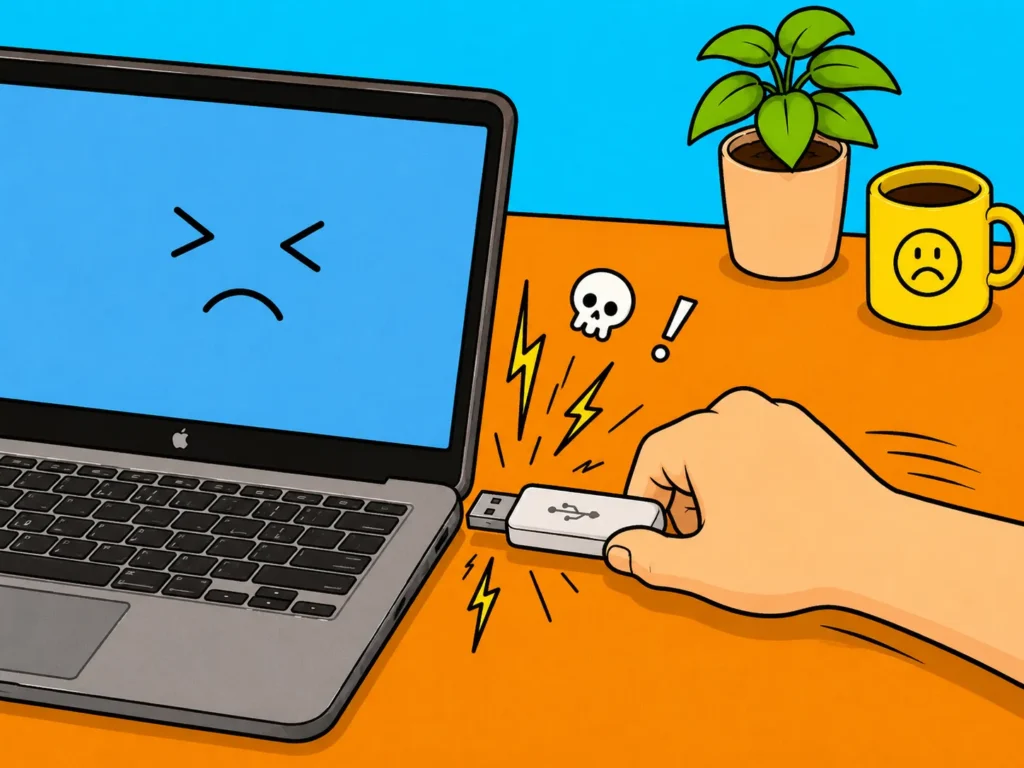
“Ejecting” tells macOS to flush anything still pending and cleanly close its connection to the drive. Pull the drive out mid-write and you risk corrupting files, or in rare cases, the whole drive. It takes two seconds and it’s the difference between “that was easy” and “why won’t any of my photos open?”.
“Why doesn’t my Mac ever need defragmenting?”
Because the two things that made defragmenting necessary, spinning hard drives and how classic Mac and Windows file systems stored data, mostly don’t apply anymore.
Modern Macs use solid-state storage (SSD) with no moving parts, so there’s no read head hunting across a physical disk for scattered fragments of a file. On top of that, macOS’s file system is designed to minimise fragmentation from the start and uses a background process called TRIM to keep SSD performance healthy over time.
Running third-party “defrag” or “optimiser” tools on a modern Mac generally doesn’t help, and in some cases can create unnecessary wear on the drive. If your Mac feels slow, the cause is almost always something else: too many login items, a full startup disk, or an ageing battery limiting performance, not fragmentation.
“Why does that little spinning rainbow wheel show up sometimes?”
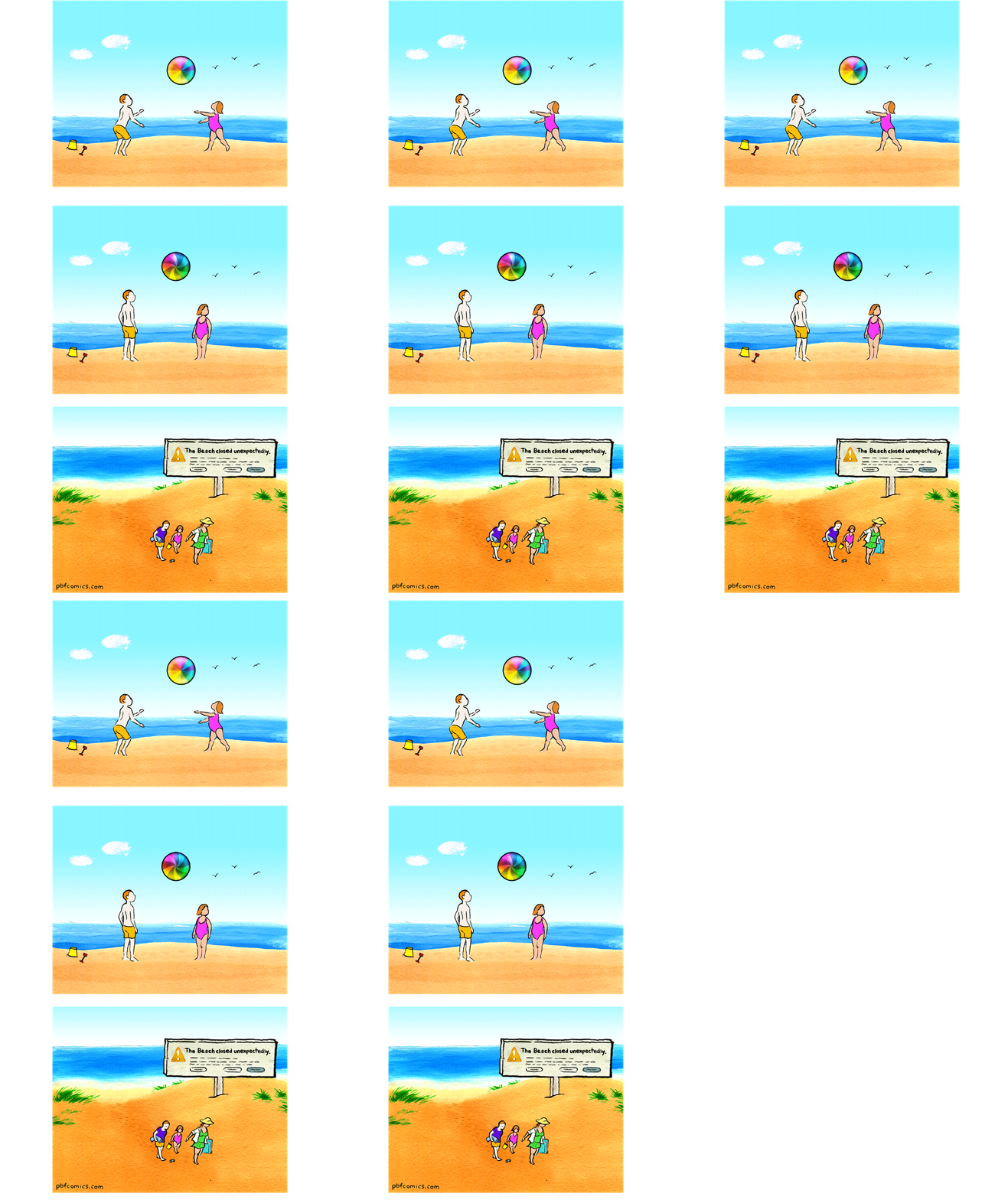
Mac users have nicknamed it the “spinning wheel of death” and, most of the time, it’s far less dramatic than that. It appears when an app is waiting on something, usually itself, and can’t respond to your clicks in the meantime. The app hasn’t necessarily crashed; it might be loading a large file, waiting on a slow network connection, or stuck on a single unresponsive task while the rest of macOS carries on fine around it.
Give it a minute. If it clears, no harm done. If it spins indefinitely, a force quit (Option + Command + Esc) will usually free things up without needing a full restart.
Now for the fun bit: the odd history hiding inside your Mac
Not every quirk is about troubleshooting. Some of the strangest things about your Mac have nothing wrong with them at all, they’re just leftover fragments of Apple history that happen to still be sitting on your desk.
“Why is the Command key symbol a little looped square, and what does it actually mean?”
Because Steve Jobs got fed up with his own logo. The original plan was to use the Apple symbol as the shortcut-key icon throughout the menus, but Jobs objected that it was overkill: “there are too many Apples on the screen, we’re taking the logo in vain.” With days to go before launch, designer Susan Kare went hunting through a book of international symbols for a replacement and landed on a looped square used across Sweden, Norway, Denmark, Finland, and Iceland as the official road sign for a “place of interest” (think historic sites, viewpoints, that sort of thing).
It’s been on every Mac keyboard since 1984, and Nordic Mac users have their own nicknames for it: Swedish users call it Fornminne (“ancient monument”) and Danish users call it Seværdighedstegn (“landmark sign”).
So every time you press ⌘C, you’re technically invoking Scandinavian tourism signage.
“Is it true one of the Mac’s system sounds is a coded insult to The Beatles?”
Yes, and Apple kept it hiding in plain sight for nearly 30 years.
Apple Inc. and Apple Corps (the Beatles’ company) fought on and off for decades over the “Apple” name, and during one legal round in the late 1980s, Apple’s lawyers banned engineers from giving any system sound a name that sounded remotely musical. Sound designer Jim Reekes, mid-eye-roll, joked he’d call his new alert tone “Let It Beep,” a dig at “Let It Be.”
Told that would never clear legal, he resubmitted it as “Sosumi,” told the lawyers (in writing, so they wouldn’t hear it spoken) that it was simply a Japanese word with no musical connotation. Say it out loud and you’ll get there.
It shipped as a built-in alert sound on every Mac from System 7 in 1991 right through to macOS Big Sur in 2020, when it was quietly renamed “Sonumi” to mark the new OS.
“Did the original Mac team actually sign the inside of the case?”
They did, literally.
Steve Jobs believed the team had built a genuine piece of design worth putting a name to, so in 1982 the original Macintosh team held a signing party, and their signatures were etched directly into the injection mould used to make the rear case of the Macintosh 128K, 512K, and Plus. Nobody using the computer would ever see them; they’re only visible if you take the back off.
Jobs, Steve Wozniak, and the rest of the team are still in there on any surviving original Mac, in plastic, decades later.
“Why did my Mac stop making that startup sound, and why is it back now?”
Because Apple removed it, then brought it back after people missed it.
The classic startup chime disappeared in 2016 when the Touch Bar MacBook Pros arrived, on the reasoning that a laptop which boots the moment you lift the lid doesn’t need an audio cue anymore. There was a workaround via Terminal for anyone who wanted it back, but it wasn’t officially reinstated until macOS Big Sur in 2020, four years later, with a proper toggle added to Sound settings.
Worth knowing: the chime was originally also a diagnostic signal, a sign your Mac passed its startup checks, so on Macs where it’s expected but silent, that’s sometimes worth a second look rather than dismissing as a setting.
The takeaway
Macs are quietly doing a lot of housekeeping in the background, temperature control, privacy checks, data integrity, and most of the noises, dots, and pauses you notice are signs that it’s working correctly, not signs that something’s gone wrong.
Of course, sometimes a weird noise or a stuck spinning wheel is the first sign of a real problem, and knowing the difference is exactly what an Apple specialist is for. If something about your Mac (or your whole fleet of them) is behaving strangely and you’re not sure which category it falls into, that’s what we’re here for.
Got a Mac question you’ve been too embarrassed to ask? Get in touch with Dr Logic and ask us anything: