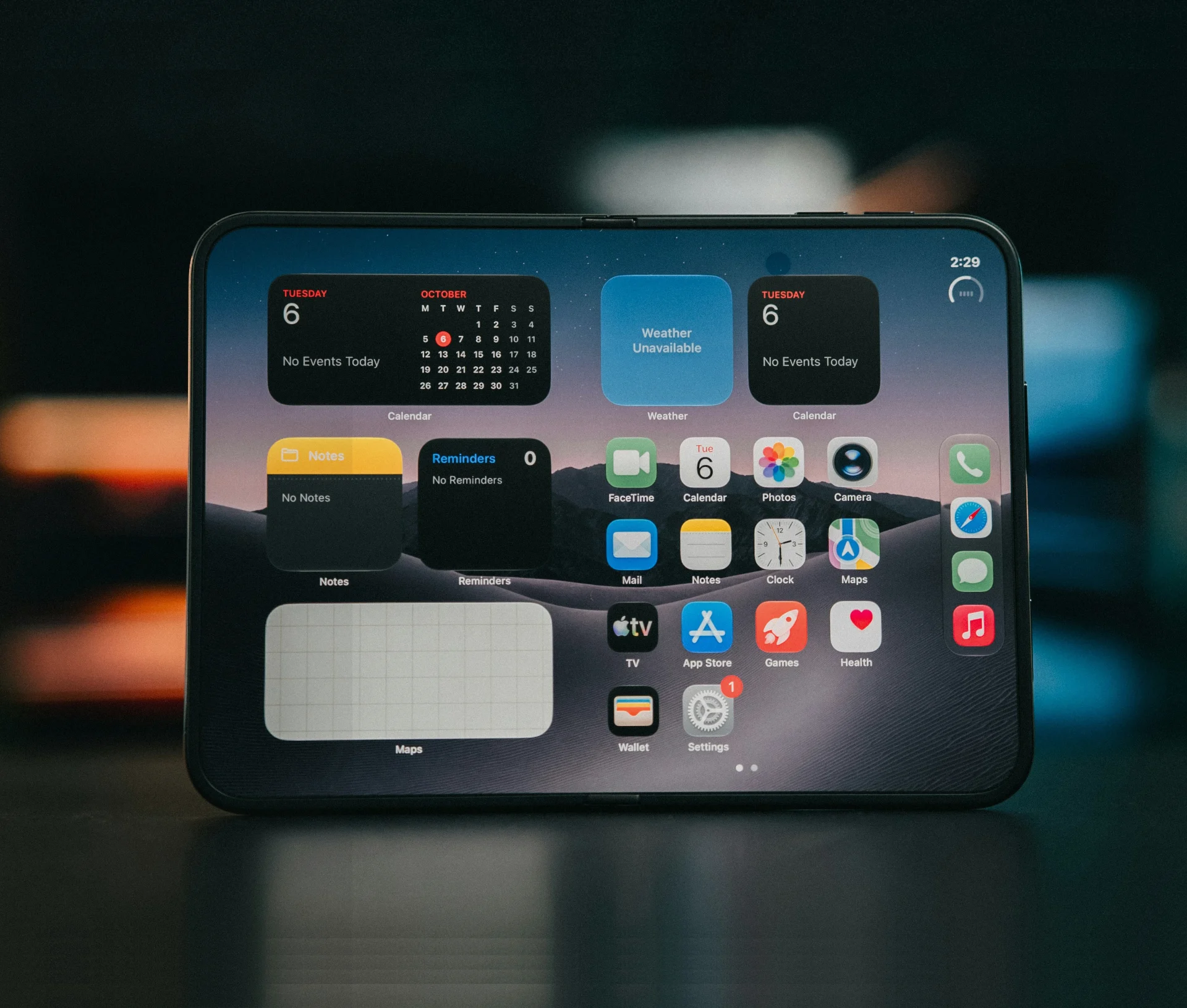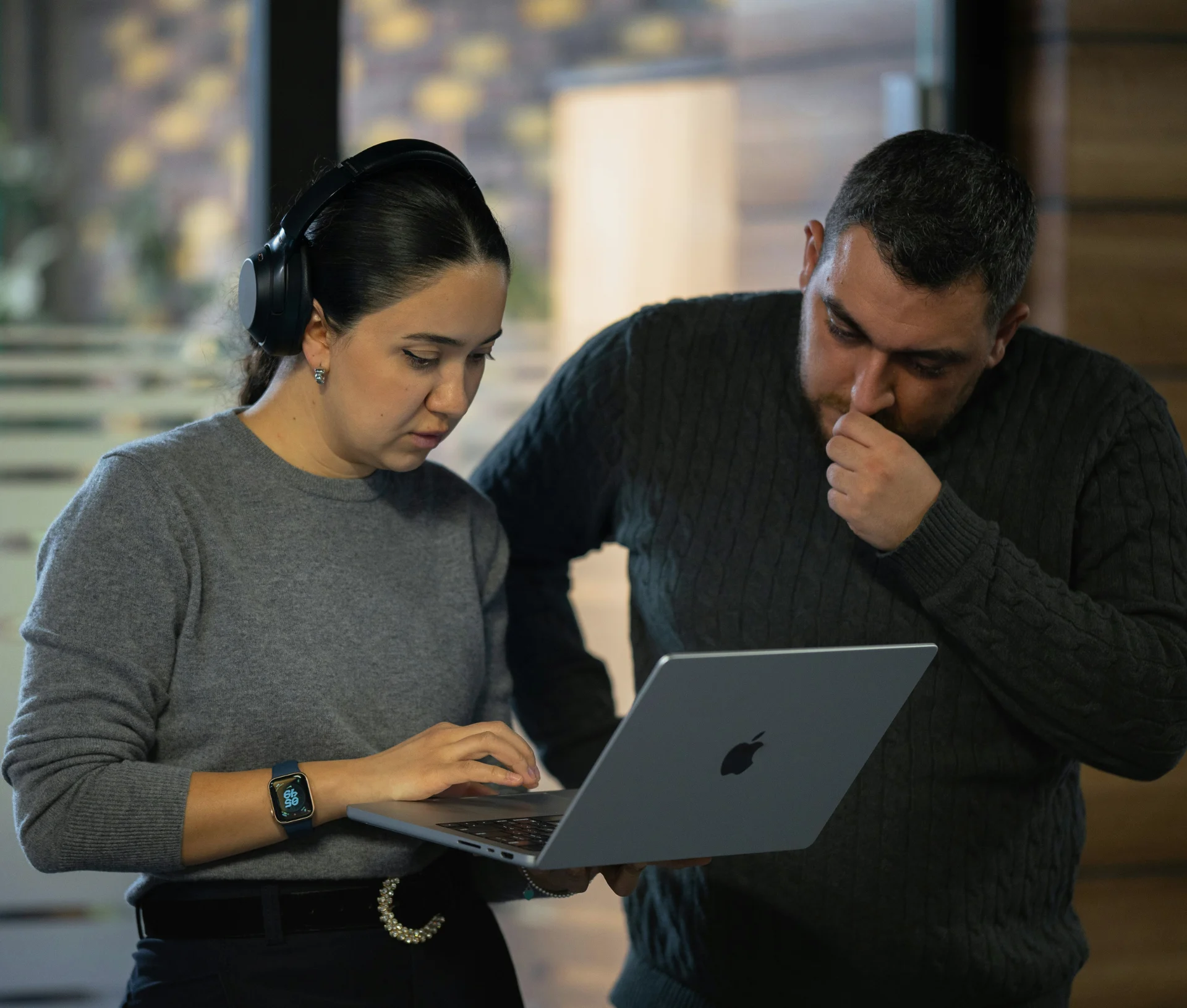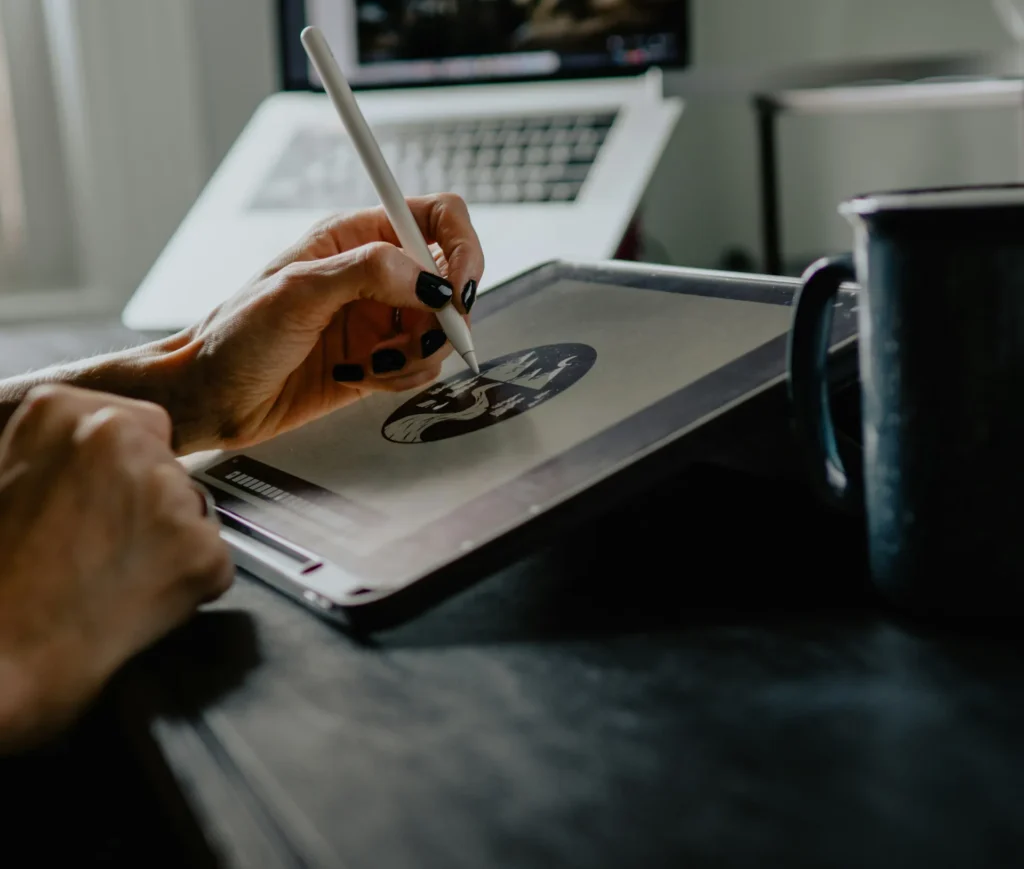
A managed iPad does not have to feel managed by the person using it. Get the profile right, and a designer using Procreate or Adobe’s mobile apps on a company iPad notices almost nothing different from using a personal one, right up until a client file needs handling with more care than a personal project would.
Most iPad creative content online is written for individual freelancers, not for a device that also has to answer to a business’s client-confidentiality obligations. This piece is about the second half of that equation.
A managed iPad can still work the way creatives expect, with the right profile
Management profiles and creative flow don’t have to be in tension, but getting the balance wrong in either direction causes real problems. Lock a creative iPad down too hard, and designers work around it. Leave it too open, and client files end up wherever an app or a habit puts them.
Supervised mode restricts less than most designers fear
Supervised mode, applied to company-owned devices during enrolment through Apple Business, restricts things like which accounts can be added and whether certain apps can be installed at all. It does not restrict how Procreate or Adobe’s apps behave once installed, and it has no effect on drawing performance, Apple Pencil latency, or export quality. The friction designers actually notice usually comes from over-restrictive app whitelisting, not supervision itself.
The right profile is invisible day to day
A well-configured creative iPad applies its restrictions at enrolment and stays out of the way afterwards. If a designer needs to fight their device to get work done, the profile was built wrong, not the platform.
What changes when client files live on a managed device
This is where a managed creative iPad genuinely differs from a personal one, and where most creative-tutorial content has nothing useful to say.
AirDrop and file-sharing policy needs a clear default, not a blanket ban
AirDrop is genuinely useful for moving a file to a client’s device in a meeting, and genuinely risky for the same reason. The workable middle ground most agencies land on is allowing AirDrop between company devices by default, while requiring an explicit decision, not an accidental tap, before anything leaves the managed environment to an unknown device.
Cloud storage sync needs to point somewhere the business actually controls
Procreate and Adobe’s apps both support syncing to personal cloud accounts as easily as business ones. On a managed device, this needs a deliberate default pointing to the business’s own cloud storage, not whatever account happened to be signed in first. Otherwise a genuinely good client file ends up backed up somewhere the business has no visibility into and no way to retrieve if the person leaves.
If client files are already living across a mix of personal and business cloud accounts on your creative team’s devices, talk to our Apple team about tidying up where things actually sync to.
Procreate, Adobe apps, and creative flexibility need specific handling, not blanket lockdown
Generic app restriction policies, built for office productivity apps, tend to break creative tools in ways that aren’t obvious until a designer hits them mid-project.
What this looks like in practice for the two most common creative apps on a managed iPad:
- Procreate stores work locally by default rather than in the cloud, which is good for creative flow but means device-level backup matters more, not less, than for a cloud-native app
- Adobe’s mobile apps (Fresco, Photoshop, Illustrator) lean on Creative Cloud sync, so the business’s Creative Cloud account structure, not just the device policy, determines where client work actually lives
- Both benefit from AirDrop and cloud-sync defaults being set once, correctly, at enrolment, rather than left to whatever each app assumes on first launch
Dr Logic recommends treating creative apps as a distinct category in any device policy, not folding them into whatever restrictions apply to standard office software. The two have almost nothing in common in how they actually store and move a client’s work.
What this means for your agency
A managed iPad only feels managed when the policy was built for office work and then applied to a creative one without adjustment. Get the profile, the sharing defaults, and the app-specific handling right at enrolment, and the device gets out of the way, doing its job of protecting client files without anyone on the creative team noticing it’s there.
Related articles
- Disaster-Proofing Your Projects: Backup and Recovery for Design Files
- Switching Your Business from PC to Mac: What It Actually Takes (and Why Most Companies Get It Wrong)
- Mac Management for Creative Teams: How to Keep Designers Working, Not Waiting
FAQs
Can a managed iPad still run Procreate and Adobe apps normally?
Yes. Device management profiles control enrolment-level settings like account restrictions and app installation, not how an installed app performs. Procreate and Adobe’s mobile apps run exactly as they would on a personal device once properly whitelisted.
Does supervised mode block AirDrop entirely?
No, not by default. Most agencies configure AirDrop to work freely between company-owned devices while requiring a deliberate step before sharing with an unmanaged device, rather than blocking the feature outright.
Should client files sync automatically to cloud storage on a managed iPad?
Only to an account the business controls. Left on default settings, creative apps often sync to whichever personal cloud account happens to be signed in first, which creates a real risk of client work ending up somewhere the business can’t retrieve it.
Will device management slow a designer down day to day?
It shouldn’t, if configured properly. Friction usually comes from over-restrictive app whitelisting applied at setup, not from supervision itself. A well-built profile is invisible during daily creative work.