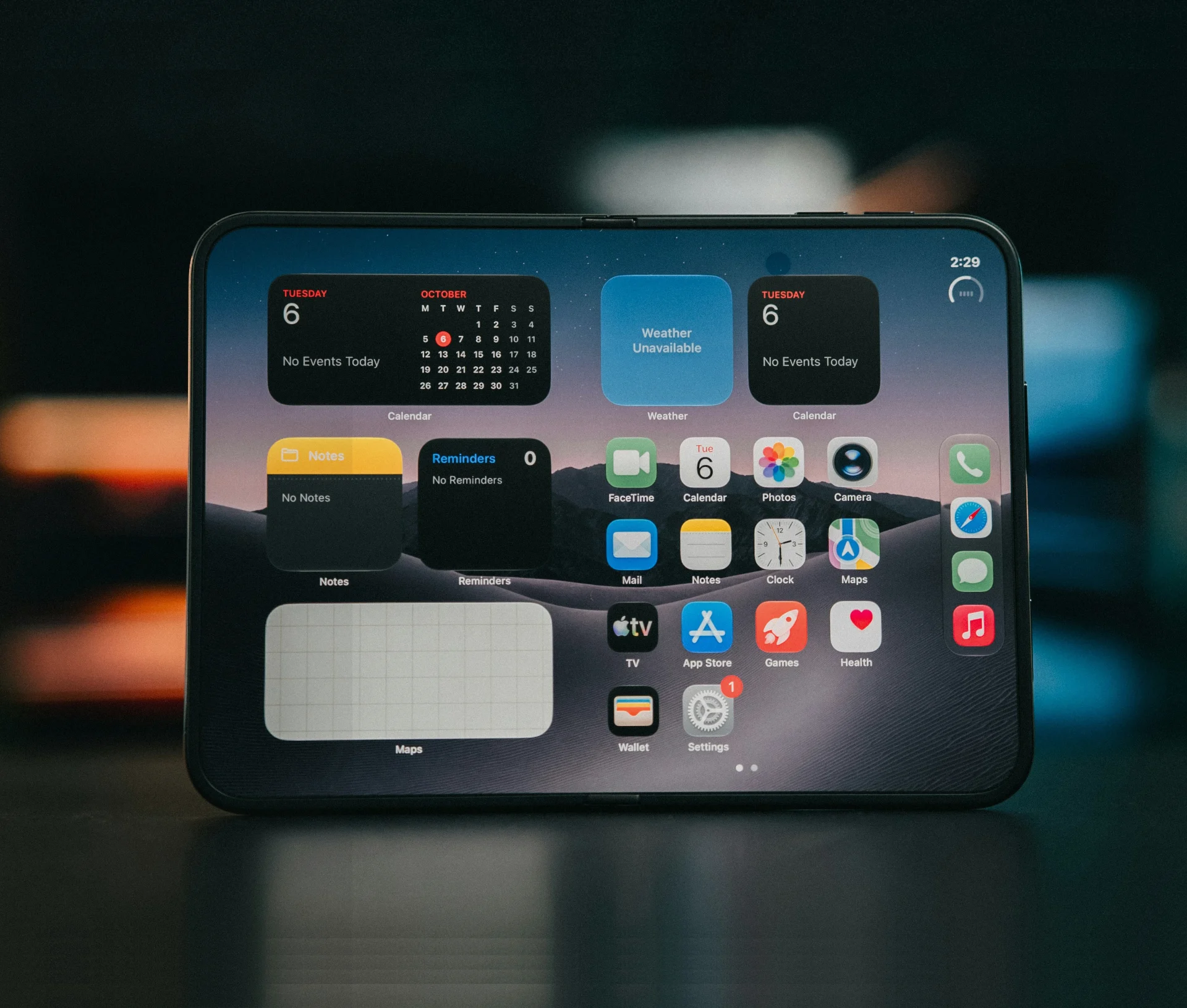
Every Mac, iPhone, and iPad your team uses already includes a set of features designed to protect focus, reduce notification overload, and support healthier boundaries between work and personal time. Screen Time, Focus Modes, Downtime, notification scheduling, and app usage reporting are all there, built into macOS, iOS, and iPadOS.
The problem is that almost nobody treats them as business tools. They sit in Settings, unconfigured, because they’re seen as personal preferences rather than something the organisation should take responsibility for. The result is predictable: the people dealing with the worst notification overload and the weakest boundaries around after-hours work are the least likely to have set any of this up themselves.
This is what it looks like when a business takes these features seriously, configures them properly, and rolls them out as part of the standard IT setup rather than hoping individuals will figure it out on their own.
Screen time tells you what you don’t want to know
Most people associate Screen Time with parents limiting their children’s iPad use, which is probably why it gets ignored in a business context. But the data it surfaces is genuinely useful for understanding how your team interacts with their devices during and outside working hours.
Screen Time on macOS and iOS tracks which apps consume the most time, how many notifications each app delivers per day, how often the device is picked up, and how usage patterns shift between working hours and evenings. None of this is visible to anyone other than the device user. It is not reported through MDM or Apple Business. It is a self-awareness tool, not a surveillance one.
The value for individuals is in making the invisible visible. Most people significantly underestimate how many notifications they receive and how frequently they switch between apps. Seeing the actual numbers is often the prompt someone needs to configure their notification settings more deliberately.
For businesses, encouraging your team to review their own Screen Time data, without sharing or reporting it, is a low-effort way to start a conversation about digital habits. Where is technology adding to the mental load rather than reducing it? That question lands differently when someone has just seen that Slack sent them 147 notifications yesterday.
Focus modes are a team decision, not a personal one
We’ve covered Focus Modes in detail as a standalone guide, but they deserve revisiting specifically through the lens of wellbeing.
Focus Modes let you create context-specific notification filters across macOS and iOS. A “Deep Work” mode that silences everything except your project management tool. A “Meetings” mode that activates automatically from calendar events. An “Out of Hours” mode that blocks work notifications after 6 pm. These are straightforward to configure, and they sync across every Apple device signed into the same Apple Account.
The well-being value comes from two directions:
- During working hours, Focus Modes protect concentration by filtering unnecessary interruptions, which lowers the cognitive load of constantly triaging what deserves attention and what doesn’t.
- Outside working hours, they create a real boundary between work and personal time by stopping notifications from pulling people back into work mode when they should be switched off.
The key insight, and one we see repeatedly with the businesses we support, is that Focus Modes are far more effective when adopted as a team standard. When everyone knows that colleagues are in “Deep Work” mode between 9 am and 11 am, it changes the culture around expectations of immediate response. It permits people to be unavailable for focused work without feeling like they’re being unresponsive.
Downtime and app limits: making the default behaviour healthier
Downtime is a Screen Time feature that lets you schedule periods where only allowed apps and phone calls are available. During Downtime, everything else is greyed out. You can still override it, but the visual cue and the extra step required to open a blocked app are surprisingly effective at breaking the habit of reflexively checking work tools at 10 pm.
App Limits work similarly, letting you set a daily time cap on specific apps or categories. When the limit is reached, a reminder screen appears. Again, it can be overridden, but the friction it introduces is often enough to change behaviour over time.
For businesses, these features are most relevant for supporting the team’s ability to genuinely disconnect. Encouraging team members to set Downtime from 7 pm to 7 am and apply app limits to Slack and email outside working hours is a practical step that complements any broader wellbeing or IT strategy. This is not about restriction. It is about making the healthier choice the default and requiring a conscious decision to override it.
Scheduled notification delivery: the middle ground
Apple introduced scheduled notification delivery in iOS 15, and it remains one of the most underused features in a business context. Rather than every notification arriving the instant it is sent, you can choose to have less urgent notifications bundled and delivered at set times, typically morning, lunchtime, and the end of the day.
The operating system uses on-device intelligence to determine which notifications are time-sensitive and should arrive immediately (messages from people, calendar alerts) and which can wait for the next scheduled delivery. It is a useful middle ground for team members who do not want to miss anything important but also do not want every marketing email, app update, and low-priority Slack message interrupting their afternoon.
This feature is particularly effective when combined with Focus Modes. Together, they create a layered approach to notification management that is more nuanced than a simple on/off toggle, and far more sustainable than expecting people to manually manage hundreds of daily notifications.
What organisational adoption actually looks like
The difference between these features being available and them making an impact comes down to one thing: whether the business treats them as part of the IT setup or leaves them as a personal preference.
Organisational adoption means:
- Including Focus Mode configuration in your standard device setup process, so every new Mac, iPhone, or iPad arrives with sensible defaults already in place
- Communicating the purpose behind these settings to the team, not as a mandate but as a supported option, the business endorses
- Reviewing notification and Screen Time guidance as part of your regular IT reviews, adjusting configurations as the team’s needs and workflows change
- Making it clear that using these features is encouraged, not a sign of being difficult or unavailable
When this is done through Apple Business and an MDM, certain aspects can be pre-configured and recommended across the fleet while leaving personal device settings under individual control. Apple replaced the previous Apple Business Manager platform with the unified Apple Business portal in April 2026, and the new Blueprints feature makes it easier than ever to deploy consistent settings across your devices. The balance between organisational structure and personal choice is important, and Apple’s ecosystem supports both.
The technology your team uses, and how it is configured, plays a direct role in whether people can focus during working hours and genuinely disconnect outside them. Every feature covered here is already included in the Apple devices your business owns. The question is not whether you have the tools. It is whether anyone has taken the time to set them up in a way that actually helps.
Our Apple and IT support team can review your current device configuration and roll out wellbeing-focused settings across your fleet, so your team gets the benefit without having to figure it out individually.
Talk to us about configuring Apple’s wellbeing features.
Related articles
- The Tech Stress Test: How Your IT Setup Could Be Burning Out Your Team
- The IT Satisfaction Gap: Why Businesses Overestimate How Happy Their Teams Are With Tech
- Give the People What They Want (Without Breaking the Bank): The Neo and the Rise of Employee Choice
FAQs
What Apple wellbeing features are available on Mac?
macOS includes Screen Time for tracking app usage and setting limits, Focus Modes for context-based notification filtering, Do Not Disturb, Downtime for scheduling periods with restricted app access, and notification management settings, including scheduled delivery. All are available in System Settings and sync across Apple devices signed into the same Apple Account.
Can a business configure wellbeing settings across all team devices?
Certain notification and restriction policies can be deployed through an MDM, and Apple Business now includes built-in device management through Blueprints for simpler deployments. Focus Mode configuration itself is managed at the device level by the user, but your IT team can set up sensible defaults and communicate recommended configurations as part of the standard device setup process.
Is Screen Time data visible to my employer?
No. Screen Time data is stored on the device and visible only to the user. It is not reported through MDM or Apple Business. It is designed as a self-awareness tool for the individual, not a monitoring tool for the organisation.