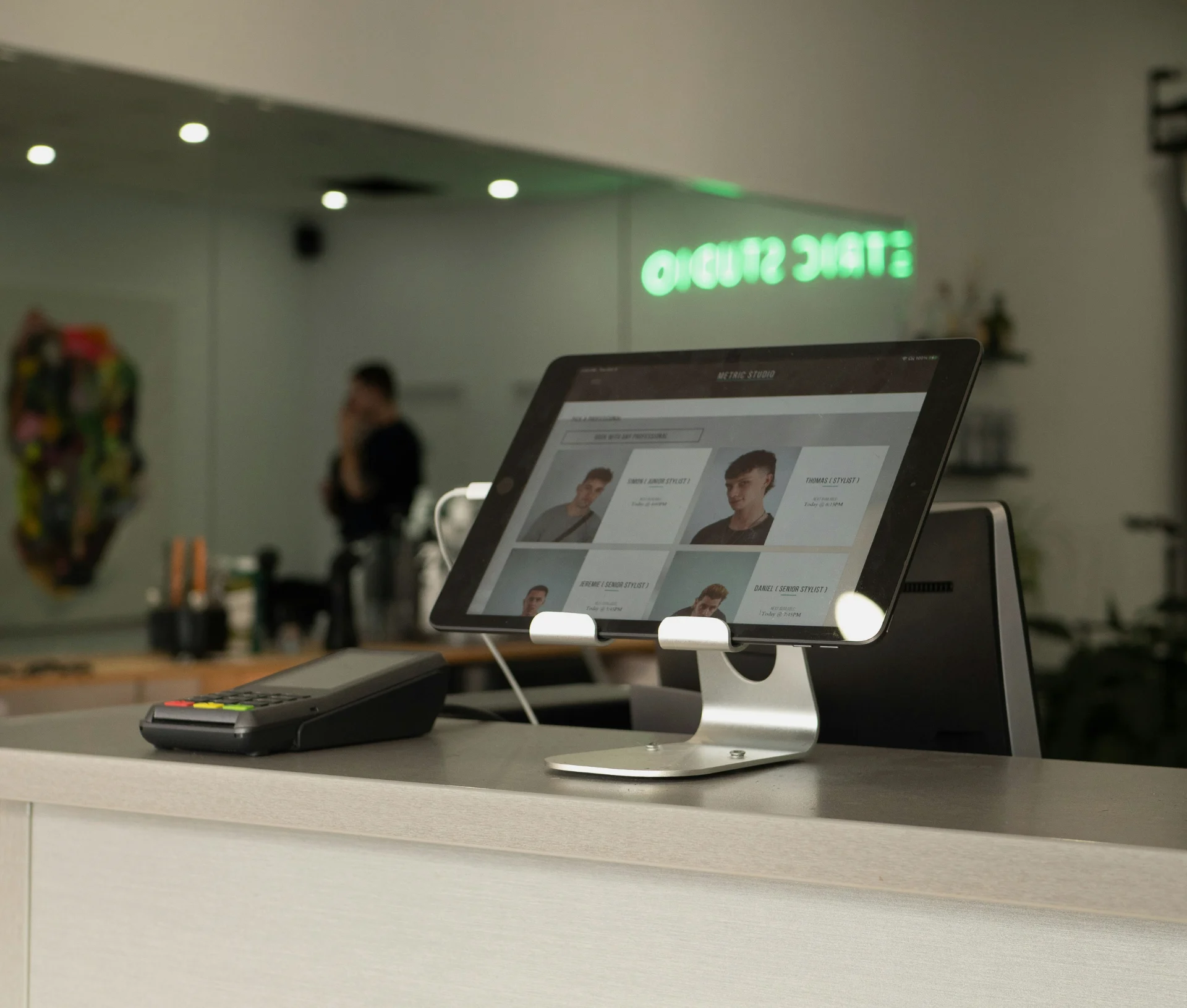
A reception iPad usually starts life with one job: signing visitors in. A few months later, it’s picked up a web browser, a game someone’s child downloaded, and a staff member’s email that never got signed out. Kiosk mode stops that drift, and for most front-desk devices it’s worth doing.
What does kiosk mode actually do?
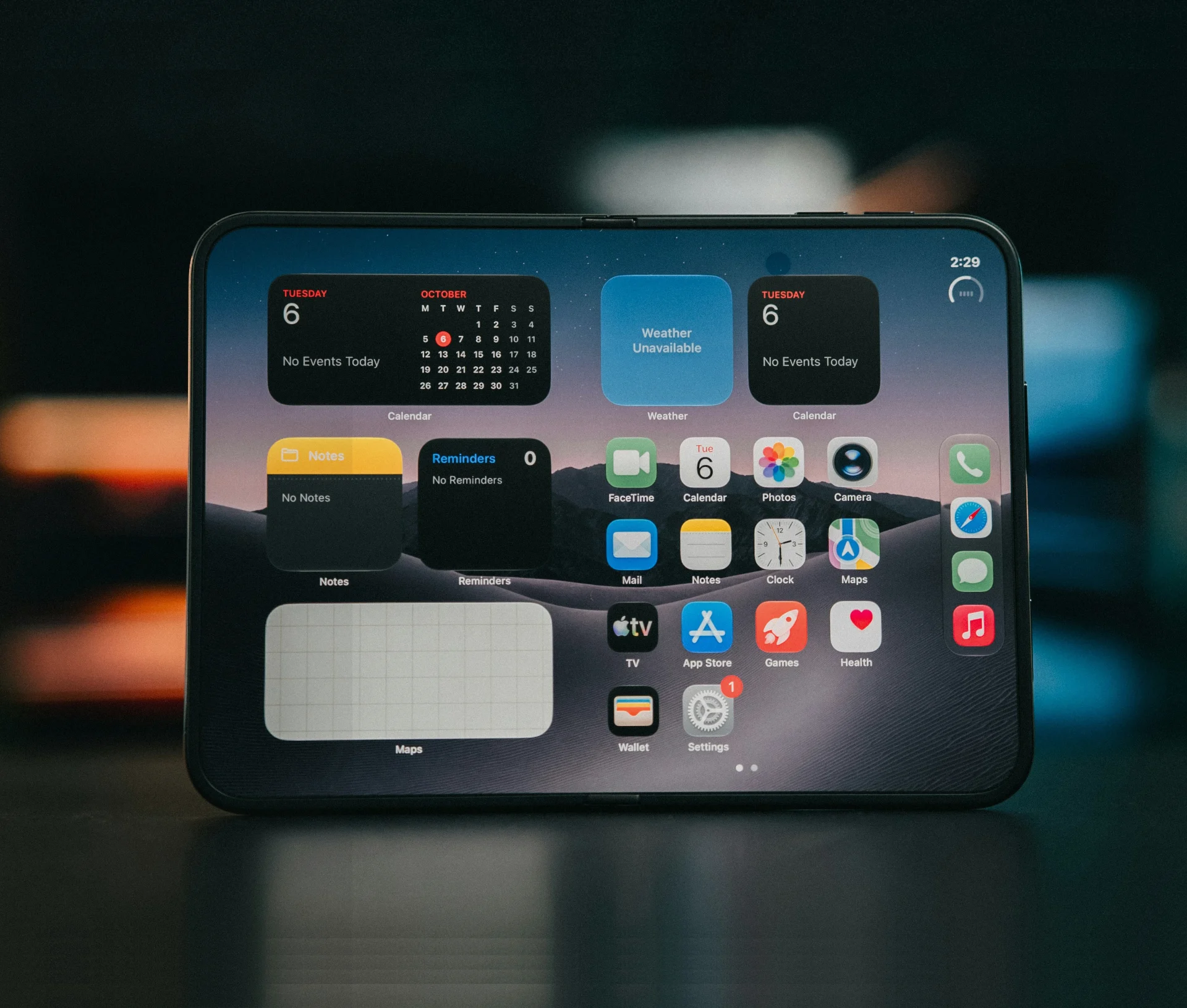
Kiosk mode locks a device to a single app. On an iPad, the managed version is called Single App Mode: the device opens the app you’ve chosen and nothing else. Visitors can’t get to the browser, the App Store, Settings or any other app. If the iPad restarts, it opens straight back into the same app.
A device in a public spot does one job and can’t be turned into anything else.
Why an open tablet in reception is a risk
A reception iPad is the easiest device in the office to misuse, because anyone can pick it up. A visitor waiting five minutes on their own could browse anything, change settings, or open whatever account someone signed into last week.
There’s a reputational side too. Nobody wants a client to find a staff member’s social media on the sign-in screen, or a half-finished game where the visitor book should be.
Which business devices are good candidates, and which aren’t?
The test is simple: does the device have one job, and do people outside your team use it? Good candidates usually look like this:
- A reception or visitor sign-in iPad
- Meeting-room booking panels outside each room
- Showroom or presentation displays that run one app on a loop
- A shared iPad that staff use for one task, such as stock checks or timesheets
Poor candidates are anything people need to use flexibly. A team iPad used for photos, notes and the odd presentation would be more frustrating than useful if it were locked to one app. The same goes for anyone’s personal work device.
If what you actually want is one iPad that several staff each sign in to with their own account, that’s a separate Apple feature called Shared iPad. It gives each person their own space on the same device, and it’s worth a separate conversation with your IT provider.
What happens if it’s stolen?
Kiosk devices tend to sit near the front door, so they’re also the easiest to walk off with. That’s where management pays off a second time. A supervised iPad can be put into Managed Lost Mode, which locks whoever has it out of the device and lets you locate it, and it can be erased remotely if it isn’t coming back. Our guides on what to do when a company device is lost or stolen and what a wipe takes with it cover that side in more detail.
What has to be in place behind the scenes, and who should set it up?
The device has to be managed and supervised. Supervised is Apple’s word for a company-owned device the business has full control over. In practice, that means the iPad is registered in Apple Business and enrolled in your DMS (formerly MDM), the system your IT provider uses to manage devices. Apple only allows the single-app lock to be installed on devices enrolled this way.
If your reception iPad was bought on a card at an Apple Store and set up by hand, it probably isn’t enrolled yet. It can usually still be added to Apple Business afterwards, but it has to be reset as part of the process.
The built-in alternative
iPads have a built-in feature called Guided Access, which you turn on in the device’s Accessibility settings. It also locks the iPad to one app until someone enters a passcode. Apple describes it as a way to stay focused on a task or to let a child use your device. It’s handy for a one-off, like handing a client an iPad during a demo.
For a device that sits in a public area all day, it falls short. Anyone who knows or guesses the passcode can end the session. Nobody can check remotely whether it’s still on, change the app, or lock the device if it goes missing, because the iPad isn’t managed.
Why this is a job for your IT provider
Setting up kiosk mode properly involves a few decisions beyond choosing the app. Should the screen ever lock? Should the volume buttons work? What happens when the app updates, given the iPad briefly drops out of the app while it installs and then reopens it? Who can take it out of kiosk mode for maintenance? They’re easier to get right once, centrally, than device by device later.
If your front-desk iPad isn’t managed yet, that’s the first thing to fix, and we’re happy to sort it as part of our mobile device management.
The ten-minute walk-round
Walk round the office and list every shared or public-facing device: reception, meeting rooms, the showroom. For each one, answer three questions:
- Does it need only one app?
- Does anyone who isn’t staff use it?
- Would losing it matter?
A yes to the first two makes it a kiosk candidate. A yes to the third means it needs to be managed, whatever you decide about kiosk mode.
Then check whether each device is enrolled in your device management. If it isn’t, that’s the first job. When you speak to your IT provider, ask three things: Is this device supervised and enrolled through Apple Business, can you lock it to one app, and how would you lock or wipe it if it went missing?
Related articles
- What to do when a company iPhone is lost or stolen
- What a Mac wipe takes with it, and what to sort before yours
- Managing iPhones and iPads for business
FAQs
What is kiosk mode on an iPad?
Kiosk mode locks an iPad to one app, so it can only do a single job, such as visitor sign-in. On a managed iPad, this is called Single App Mode. Visitors can’t open the browser, Settings or other apps, and if the iPad restarts, it goes straight back into the chosen app.
Do I need device management to use kiosk mode on an iPad?
For a device in a public area, yes. Apple only allows the managed single-app lock on supervised iPads enrolled through Apple Business into your device management system. The built-in Guided Access feature works without it, but anyone with the passcode can end it, and nobody can manage it remotely.
What's the difference between kiosk mode and Shared iPad?
They solve different problems. Kiosk mode locks an iPad to one app for one job. Shared iPad lets several people use the same iPad, each signing in to their own account with their own space. A reception sign-in tablet suits kiosk mode, while a team iPad passed between staff might suit Shared iPad.
Is Guided Access secure enough for a reception iPad?
It’s useful for a one-off, like handing a client an iPad during a demo. For a device that sits in reception all day, it falls short: anyone who knows the passcode can end the session, and because the iPad isn’t managed, you can’t check it remotely or lock it if it goes missing.