From 1 February 2027, Microsoft stops sending its own text message and phone call sign-in codes for most Microsoft 365 users. If anyone on your team still gets a code by text, they’ll need Microsoft Authenticator or a passkey set up before then.
On the day, anyone whose only sign-in method is a text code will hit a screen asking them to set up a passkey, and they won’t be able to skip it. They can get in once it’s done. That’s manageable at a desk with IT on hand, and much less fun at 8am before a client pitch. The steps for staff come first below, then a separate section for whoever runs IT.
What is Microsoft changing, and who does it affect?
There are three dates. On 1 September 2026, passkeys became the default sign-in method in Microsoft Entra, the service behind Microsoft 365 sign-in. Anyone set up for text or phone call codes was enabled for passkeys automatically, and started seeing a prompt to register one. For now, they can snooze it.
On 1 February 2027, Microsoft stops delivering text and phone call codes for most users, including internal guest accounts. Anyone whose only method is a text or call will have to register a passkey before they can carry on signing in. Text-based self-service password reset stops on the same date.
Global Administrators and external users get until 1 July 2027.
Who isn’t affected?
If you already sign in with Microsoft Authenticator, a passkey or another authenticator app, you won’t get the blocking screen. You might still see the snoozable passkey prompt if your account is also set up for text codes. Your IT team can stop that once your new method is working.
How do you set up Microsoft Authenticator on an iPhone?
On a work iPhone, your IT provider should install Authenticator for you through device management (DMS, formerly MDM). If it isn’t there, ask them to add it, so the app is managed with the rest of the phone. On your own iPhone, get it from the App Store.
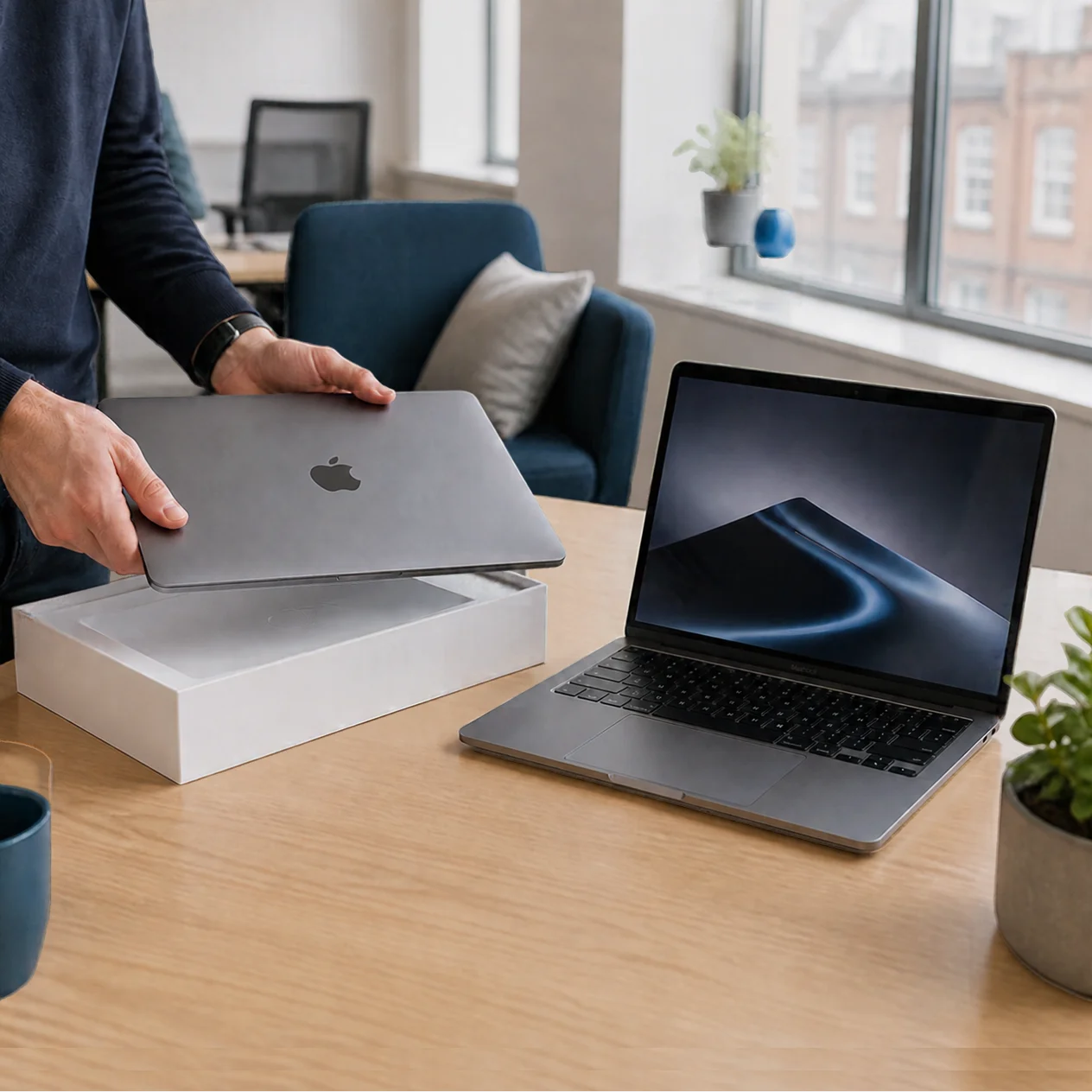
Then, with your Mac and iPhone side by side:
- On your Mac, go to your Microsoft account’s Security info page. Your IT team can send you the link.
- Select “Add sign-in method”. Choose Microsoft Authenticator.
- On your iPhone, open Authenticator. Tap the plus sign. Select “Work or school account”. Scan the QR code on your Mac.
- Approve the test notification. Your Mac shows a number. Type that number into the Authenticator.
- If Authenticator asks you to add a passkey, follow the steps. Your IT team decides whether this is available.
- Add a second sign-in method. Ask your IT team which one they want you to use.
- Sign out of Microsoft 365 on your Mac. Sign in again to test that everything works.
The number-matching step in point 4 is there for a reason: it stops someone approving a sign-in they didn’t start. If a number ever appears when you’re not signing in, don’t approve it, and tell IT.
What happens when someone upgrades, loses or wipes their iPhone?
This is where people actually get locked out, so it’s worth planning before it happens.
Upgrading to a new iPhone
Keep the old phone until the new one works. Authenticator can back up to iCloud, but for work accounts only the account names come across. You’ll need to sign in again on the new phone and set up the passkey again before you remove the old one. Microsoft has made the restore steps on iPhone clearer this autumn, but it’s safest to assume the passkey needs creating from scratch.
Wiping or losing a phone
A wipe takes the Authenticator and its passkey with it. A lost phone is harder: if it held the only copy of someone’s sign-in method, they can’t sign in until an administrator resets their methods and lets them register again. Our lost or stolen iPhone guide covers the other steps.
That’s why the second method matters more than anything else in this article. It turns a lost phone from a morning off work into a quick reset.
If you’re not sure who in your business could reset a locked-out user, or how long it would take, we’re happy to check how your Microsoft 365 is set up.
Where does this leave you for Cyber Essentials?
The NCSC’s requirements have said since 2022 that “authentication to cloud services must always use MFA”. Version 3.3, for assessment accounts created from 27 April 2026, changed how that’s marked: missing MFA on a cloud service that offers it is now an automatic fail, and cloud services can’t be left out of scope.
Text codes still count as MFA for Cyber Essentials. The NCSC describes SMS as better than no MFA at all, and recommends using a stronger option where one works for you. So Microsoft’s change won’t affect your certificate on its own, as long as everyone has moved to another method by the time text codes stop.
One detail is useful if staff use their own phones: a personal phone used only for an MFA app, calls and texts is out of scope for Cyber Essentials. Our Cyber Essentials service covers the wider certification detail.
What should you do before 1 February?
Two short checklists, depending on who you are.
For everyone:
- Make sure Microsoft Authenticator is on your work iPhone, and you’re signed in to it
- Add a second sign-in method
- Test both today by signing out and back in
For whoever runs IT:
- Find out who still uses text or phone call codes. Microsoft publishes a PowerShell script for this, linked from its retirement guidance; any result above zero means your tenant is affected
- Move those users to passkeys or Authenticator, then take them out of the text and phone call policy once their new method has been tested
- Check self-service password reset, which loses text codes on the same date, and your Global Administrators, who have until July
- Tell the team what the passkey prompt looks like, so nobody mistakes it for phishing
- Write down who resets a user who loses their phone, and how
If you have a genuine need to keep text codes, Microsoft lets you connect a paid telephony provider through its Microsoft Security Store. For most agencies we’d move everyone to Authenticator or passkeys, which cost nothing extra.
Dr Logic can run that check for you and tell you who’s still on text codes. If you’d like a second pair of eyes on your tenant, we’re happy to take a look.
Related articles
- What to do when a company iPhone is lost or stolen
- Device compliance, not just MFA, should decide who gets into Microsoft 365
- The MFA and email security shortlist for Microsoft 365 and Google Workspace
FAQs
When does Microsoft stop sending SMS sign-in codes?
Microsoft stopped delivering its own text message and phone call codes on 1 February 2027 for most users, including internal guests. Global Administrators and external users follow on 1 July 2027. After that, anyone whose only method is a text or call has to register a passkey before they can carry on signing in.
Will my staff be locked out on 1 February 2027?
No. Users who still rely only on text or call codes will see a sign-in screen asking them to register a passkey, and they can’t skip it. They can still get in once they’ve set one up. The risk is timing, so it’s better to move them to Authenticator or passkeys beforehand.
How do I set up Microsoft Authenticator on my work iPhone?
Ask your IT provider to install it through device management, then add your work account by scanning the QR code from your Microsoft Security info page. Approve the test sign-in by typing the number your Mac shows, add a passkey if prompted, register a second method, and test by signing in again.
What happens to Microsoft Authenticator when I get a new iPhone?
Keep your old phone until the new one works. An iCloud backup restores your account names, but work accounts need signing in again, and a passkey needs setting up again on the new phone. Only remove the old phone from your account once you’ve tested signing in with the new one.
Do SMS codes still count as MFA for Cyber Essentials?
Yes. The NCSC treats SMS as a valid form of multi-factor authentication, though it recommends stronger options where they work for you. Since version 3.3 came in for assessments from April 2026, missing MFA on a cloud service that offers it is an automatic fail, so Microsoft 365 must have MFA switched on for everyone.