An office network is five things in a chain: the internet line, a router and firewall, a switch, WiFi access points, and the devices people use. When it’s set up well, nobody thinks about it. A Mac and iPhone office has a few extra needs on top, and when those are missed, staff notice first: AirPlay can’t find the meeting-room screen, the printer disappears, or the WiFi drops between rooms.
Here’s what each part does, what good looks like, and how to tell whether yours is in decent shape without needing to be technical.
What is actually on a business network, in plain English?
If the internet line is the road to your building, the router and firewall are reception, the switch is the corridor, and the access points are the doors into each room.
The internet line is your broadband or leased line, the connection out of the building. The router passes traffic between your office and the internet, and the firewall decides what’s allowed in and out. In smaller offices those two are often the same box. The switch is where wired connections meet: desks, printers, meeting-room screens and the access points themselves all plug into it. Access points are the WiFi, usually mounted on ceilings or walls, each covering part of the office. Then there are the devices: Macs, iPhones, iPads, printers and screens.
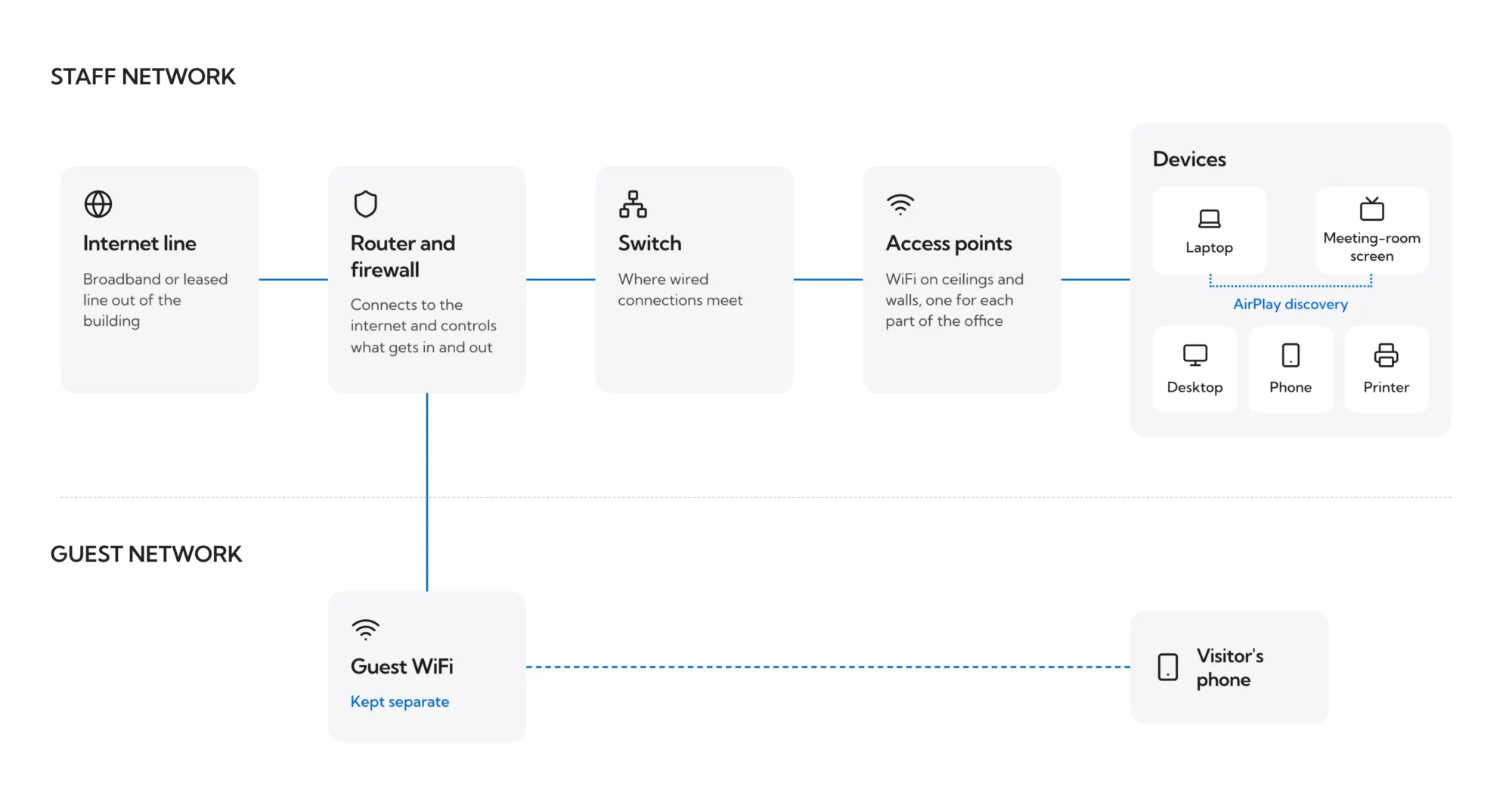
Guests should sit on a network of their own, kept apart from staff devices. Our article on network segmentation explains why that limits how far a problem can spread.
What does a good office network look like?
The WiFi comes from proper business access points, placed around the office. The WiFi built into a broadband router is fine at home and struggles once twenty people and a few meeting rooms rely on it.
Anything that sits still and matters gets a cable: desktop Macs, the main printer, meeting-room screens. Wired connections don’t drop when the office gets busy, and they leave more WiFi capacity for laptops and phones.
Guests have their own network. Someone keeps an eye on it, so slow WiFi or a failing access point gets spotted before staff start messaging each other about it.
The passwords and settings are written down somewhere safe that more than one person can reach. If the only person who knows the router login left two years ago, that’s the first thing we’d fix.
What do Macs and iPhones need from it?
Most generic network guides stop here. These four points are where we see Apple offices run into trouble.
Private WiFi addresses
Every device has a hardware address that a network can use to recognise it. Apple devices hide theirs by default, using a different private address on each WiFi network. On networks with weaker security, that private address can change every couple of weeks. It’s a sensible privacy feature, and it trips up any network rule that recognises devices by address, such as “only these laptops can join” or a guest time limit.
The fix is usually simple. Your device management system (DMS, formerly MDM), such as Addigy, can turn private addressing off for your company network only, and leave it on everywhere else. Longer term, networks that recognise devices by certificate avoid the problem altogether.
AirPlay, AirPrint and shared printers
AirPlay, AirPrint and shared printers find each other using Apple’s discovery system, Bonjour, which by design only looks within the network a device is on. That’s why a meeting-room screen can vanish the day someone splits the network for good reasons. The network needs to pass discovery between the parts that should see each other, such as staff laptops and meeting-room screens, while keeping guests out.
WiFi settings pushed through device management
Your DMS can send the WiFi network, its password and any certificates to every Mac, iPhone and iPad. Nobody types a password, staff can’t remove the network by mistake, and when the password changes you update it once and every managed device picks it up. Most “my Mac keeps asking to rejoin” tickets come from devices that were set up by hand.
Guest sign-in pages on iPhone
If your guest WiFi has a sign-in page, iPhones open it in a small pop-up window, separate from Safari. Pages that rely on pop-ups or redirects can fail there, and tapping Cancel disconnects the phone from the network. It’s worth testing your guest sign-in on an iPhone before your visitors do.
What breaks first, and how does it look to staff?
Network problems tend to show up as small, repeated annoyances that people eventually stop reporting.
| What staff say | Likely cause | Who fixes it |
|---|---|---|
| WiFi drops when I walk between rooms | Access points not set up to hand over cleanly, or too few of them | IT provider |
| AirPlay can't find the meeting-room screen | Mac and screen on separate networks, with discovery blocked | IT provider |
| The printer vanished after the network change | The same discovery issue, or the printer moved to a different network | IT provider |
| My Mac keeps asking to rejoin the WiFi | WiFi settings not pushed to the device, or the password changed | IT provider, through device management |
| Video calls stutter at busy times | Too many devices on one weak access point, or a congested line | IT provider |
If two or more of those sound familiar, we’re happy to take a look at your network.
How do you check your own?
This takes about ten minutes, and you don’t need any technical knowledge:
- Find out who set up the network and where its settings and passwords are written down.
- Ask whether the guest WiFi is separate from the staff network.
- Check that the WiFi comes from access points on ceilings or walls, and not only from the broadband router.
- Walk the office with your phone. Note any room where the WiFi drops or AirPlay can’t find the screen.
- Ask your IT provider whether anyone monitors the network, and how they would know about a problem before staff do.
Dr Logic’s network management service covers the design, monitoring and management of WiFi, switching and connectivity, including network access control and keeping guest, corporate and sensitive traffic apart. If your answers to that check were vague, we’d be glad to review your network with you.
Related articles
- Network segmentation is what limits how far a single breach can spread
- Should You Put Your Reception iPad or Shared Devices Into Kiosk Mode?
FAQs
How does an office network work?
An office network links an internet line, a router and firewall, a switch, WiFi access points and your devices. The router connects you to the internet, the firewall controls what gets in and out, the switch handles wired connections, and access points provide the WiFi. Each part needs to be sized for how many people use it.
Why can't AirPlay find the meeting-room screen?
Usually the Mac and the screen are on separate networks. AirPlay relies on Apple’s discovery system, Bonjour, which only looks within the network a device is on. The network can be set to pass discovery between staff laptops and meeting-room screens while still keeping guests separate. Your IT provider can make that change.
What is a private WiFi address on an iPhone or Mac?
It’s a privacy feature, on by default, where an Apple device uses a different hardware address on each WiFi network. It can break network rules that recognise devices by address. Your device management system can switch it off for the company network alone, leaving it on for public WiFi elsewhere.
Do businesses need a separate guest WiFi network?
Yes, for most offices. A separate guest network keeps visitors’ devices away from staff Macs, printers and shared files, so one infected phone can’t reach company systems. It also lets you set different rules for guests, such as a sign-in page or a speed limit, without affecting staff.
Is the WiFi from a broadband router good enough for an office?
For a handful of people, sometimes. Once you have twenty or more staff, meeting rooms and video calls, a single router struggles. Business access points placed around the office give steadier coverage, hand devices over cleanly between rooms, and can be monitored so problems get spotted early.