The average knowledge worker is interrupted every three minutes. For remote teams juggling multiple clients, Slack channels, and project boards, it’s often worse. The result isn’t just lost productivity, it’s burnout, and it’s quietly costing UK businesses billions every year.
Most people think the fix is cultural: better boundaries, fewer meetings, a wellness webinar. Those things matter. But there’s a practical, technical tool already sitting inside every Mac, iPhone, and iPad your team uses, and almost nobody has configured it properly.
macOS Focus Modes aren’t just “Do Not Disturb” with a new name. When set up correctly, they become a system-wide productivity layer that protects deep work, reduces context switching, and gives your team permission to concentrate without disappearing entirely.
Here’s how to use them properly and why they’re one of the simplest ways to make remote working genuinely stress-free.
What Focus Modes actually do (and why most teams ignore them)
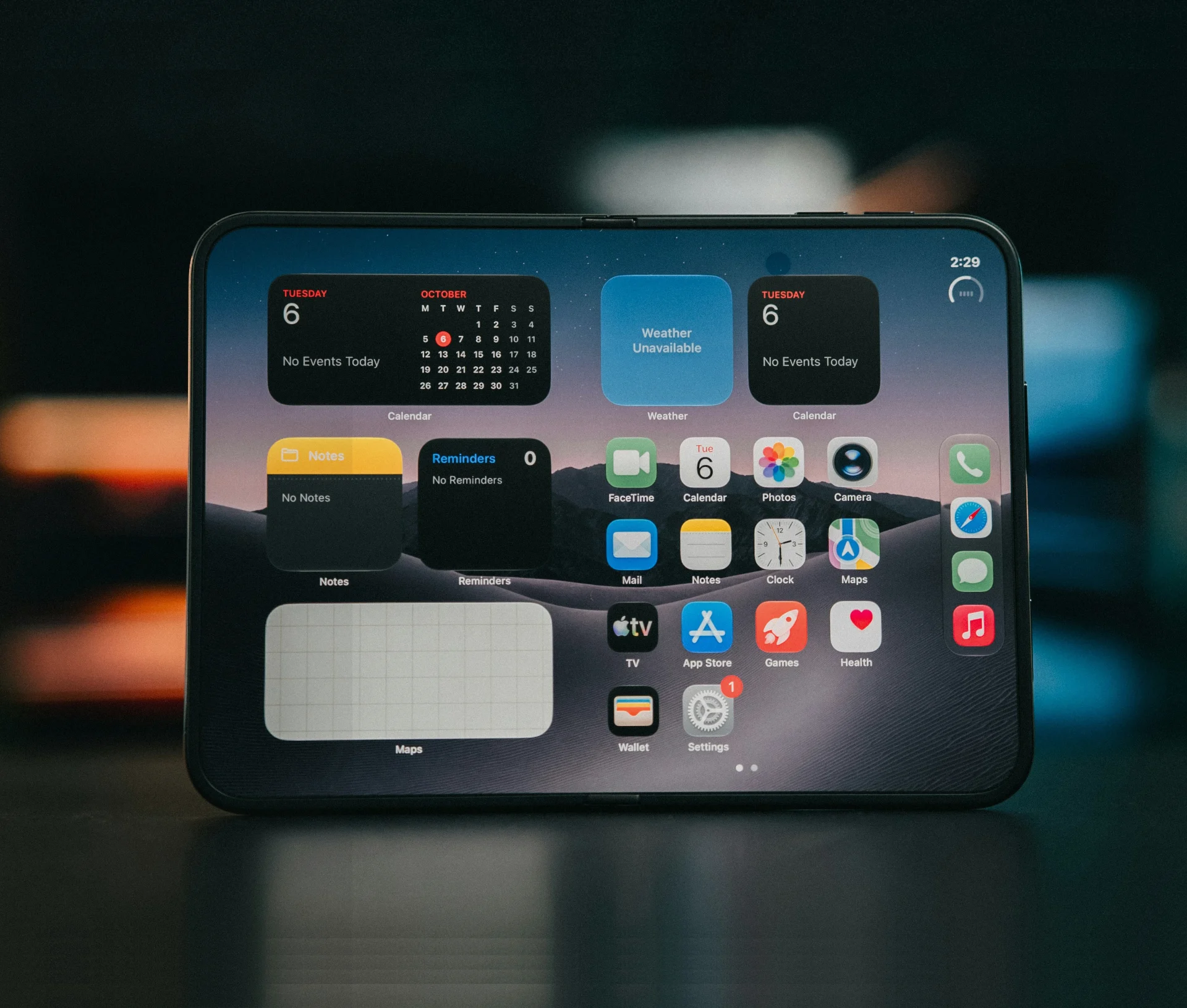
Focus Modes were introduced in macOS Monterey and have matured significantly since. At their core, they let you filter notifications, messages, and even home screen layouts based on what you’re doing: working, in a meeting, handling a specific client, or simply trying to think.
The reason most teams ignore them is simple: the default settings are underwhelming. Out of the box, “Do Not Disturb” silences everything. That’s too blunt for remote agency life, where missing the right message at the wrong time can cost you a client.
The real power is in customisation. Focus Modes let you create context-specific environments that allow the right notifications through while blocking the noise.
Five Focus Mode configurations every remote team should use
1. Deep work mode
Allow notifications only from your project management tool (e.g., Asana or Monday.com) and your line manager. Silence Slack, email, and social apps entirely. Set a Focus Filter to show only work-related Safari tab groups and hide your inbox. Schedule it for two-hour blocks in the morning when cognitive energy is highest.
2. Client calls mode
Allow only calendar alerts and your video conferencing app. Activate automatically when a calendar event containing “call” or “meeting” starts. This prevents embarrassing notification pop-ups during screen shares and keeps your team present in the conversation rather than half-reading Slack.
3. Admin & email mode
Allow email and Slack notifications, but suppress everything else. Designate a specific window – say, 2 pm to 3 pm – for processing inboxes and responding to messages. This batches reactive work into a defined slot rather than letting it bleed across the entire day.
4. Out of hours mode
Allow calls only from contacts marked as “Emergency” or your on-call manager. Activate automatically after 6 pm on weekdays and all weekend. This is the burnout prevention layer. It doesn’t block access to work apps; your team can still check things if they choose to. It simply removes the compulsion by stopping notifications from pulling them back in.
5. Project sprint mode
Create a Focus Mode for each major client or project. Allow notifications only from the relevant Slack channel, project board, and team members. This is particularly effective during campaign launches or development sprints when a team needs to stay locked in on one workstream without distraction from other accounts.
How Focus Modes keep remote workers in sync across every device
One of the most underused features is Focus Mode syncing. When your team activates a Focus Mode on their Mac, it automatically applies across their iPhone, iPad, and Apple Watch. This means the “Out of Hours” mode set on a MacBook also silences the iPhone in their pocket, which is where most after-hours interruptions actually happen.
For this to work, all devices need to be signed into the same Apple Account with “Share Across Devices” enabled in Focus settings. It takes thirty seconds to configure and removes the most common loophole in any digital boundaries policy.
Why most teams know about Focus Modes but don’t use them
- The default settings don’t do enough. Out-of-the-box Focus Modes are too generic for real team workflows, so people try them once and give up.
- There’s no team-wide standard. Without guidance, everyone configures (or ignores) Focus Modes differently, creating inconsistency.
- People worry about missing something important. The allow-list approach solves this, but most users don’t know it exists.
- Nobody owns the rollout. Focus Modes sit in a gap between IT and HR – technical enough to need configuration, cultural enough to need buy-in.
- It feels like a personal preference, not a business tool. In reality, structured notification management is an IT and wellbeing policy, not a lifestyle choice.
The agencies and remote teams we work with that have implemented structured Focus Mode policies report fewer complaints about after-hours notifications, less context-switching during deep work blocks, and a team that feels like leadership actually cares about protecting their time.
It’s a small configuration with a disproportionately large impact.
Make your Apple setup work harder for your remote team
Focus Modes are just one example of how Apple’s built-in tools can reduce friction and protect your team when they’re properly configured. Most businesses are only scratching the surface of what their existing hardware can do.
If you’re running a Mac-first team and want to make remote working feel less chaotic, get in touch. Our Apple specialists and IT support team can audit your current configuration and recommend changes that make an immediate difference – no new software required.
Related articles
- Why Culture-Fit Matters in IT: Moving Beyond the Helpdesk Ticket to Strategic Partnership
- Apple Business Manager: The Foundation of Scalable Apple Deployment
- The Mac Management Mismatch: Why Your Remote Team Needs a Remote IT Partner
FAQs
Do macOS Focus Modes work across all Apple devices?
Yes. When “Share Across Devices” is enabled in System Settings, any Focus Mode activated on a Mac will automatically apply to an iPhone, iPad, and Apple Watch signed into the same Apple Account.
Will Focus Mode hide messages or just silence them?
Notifications are silenced and collected in Notification Centre for later review. Messages aren’t deleted or hidden – they’re simply held until the Focus Mode is deactivated.
How many custom Focus Modes can I create?
Apple allows up to ten custom Focus Modes per device, which is more than enough for most teams to cover every common work scenario.