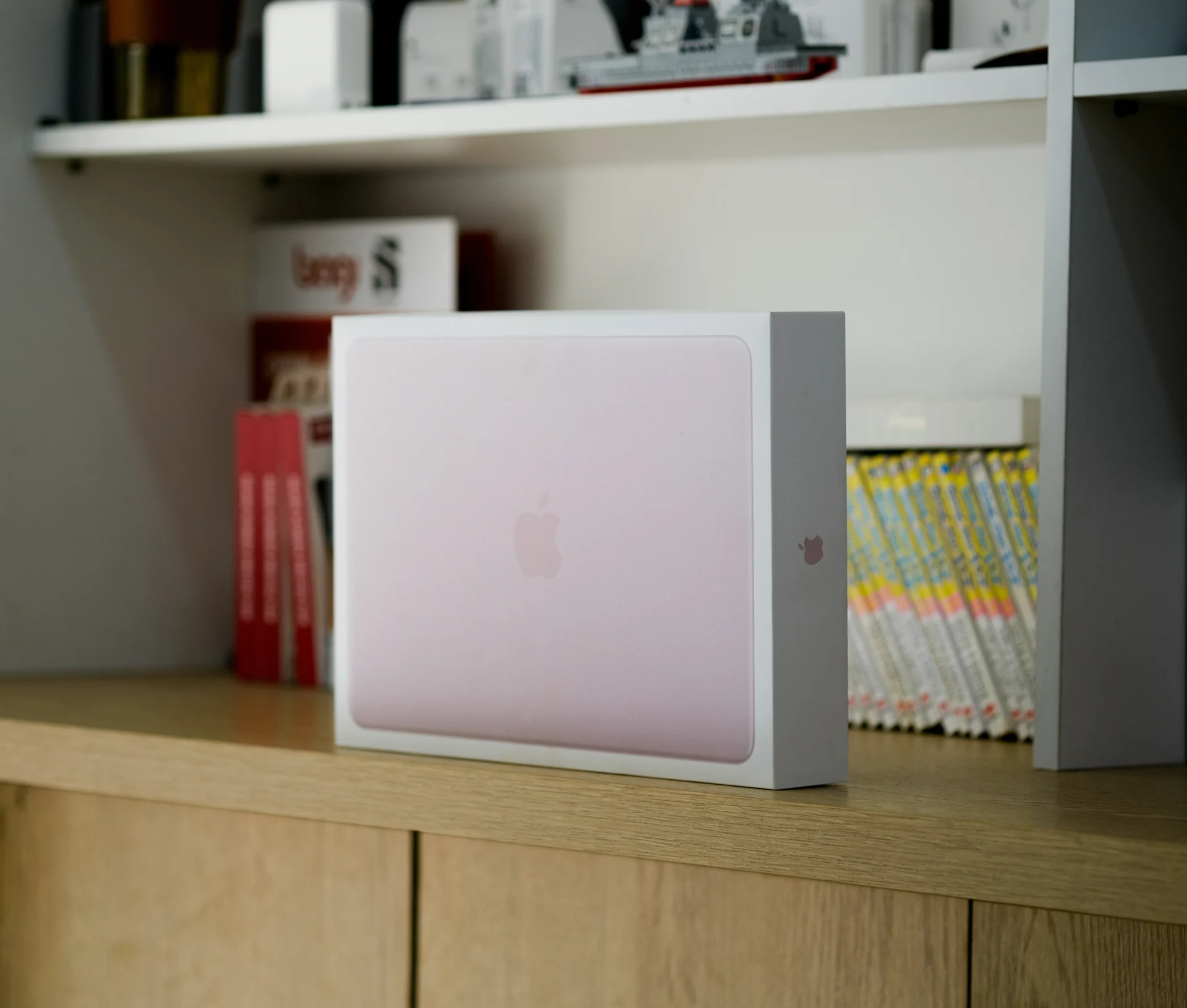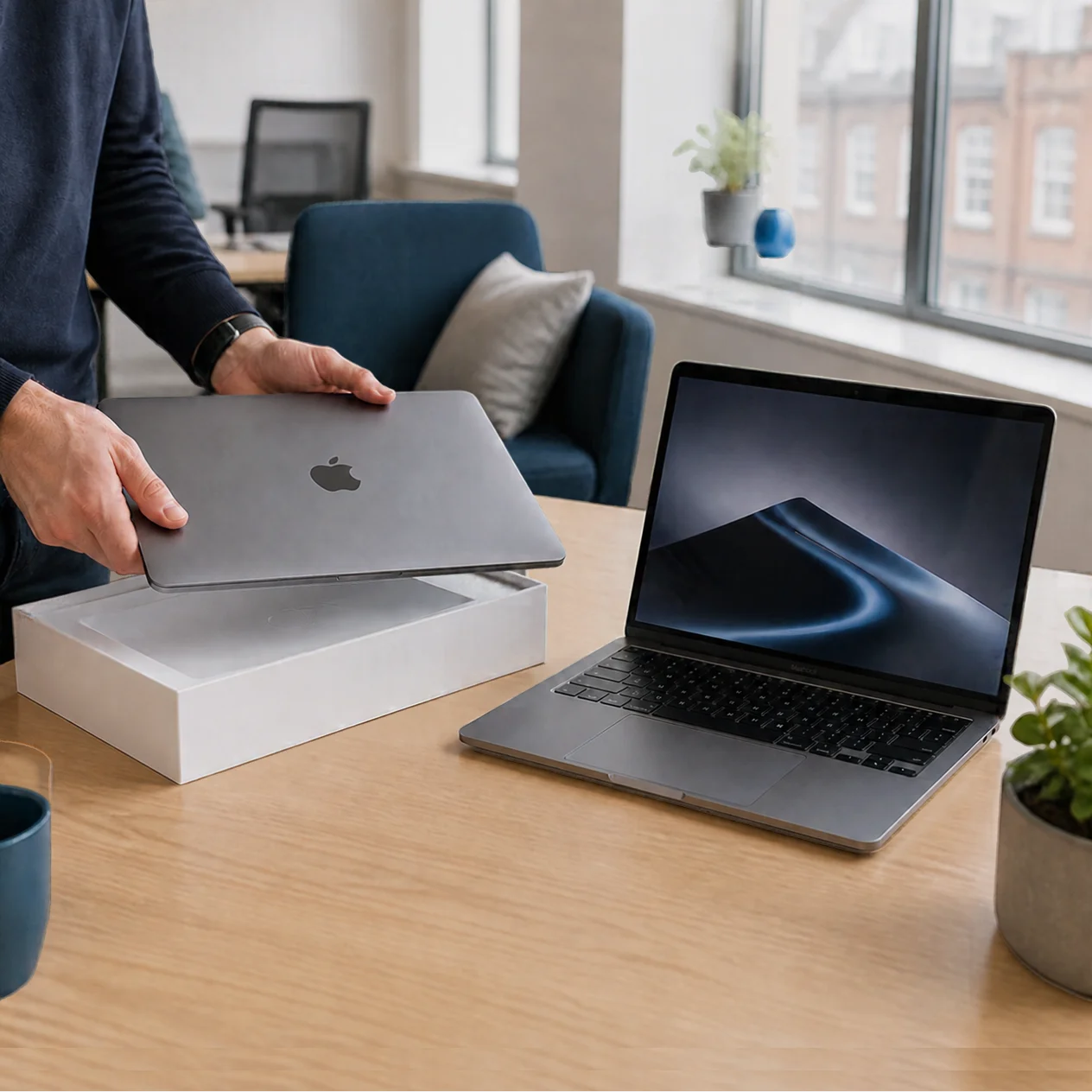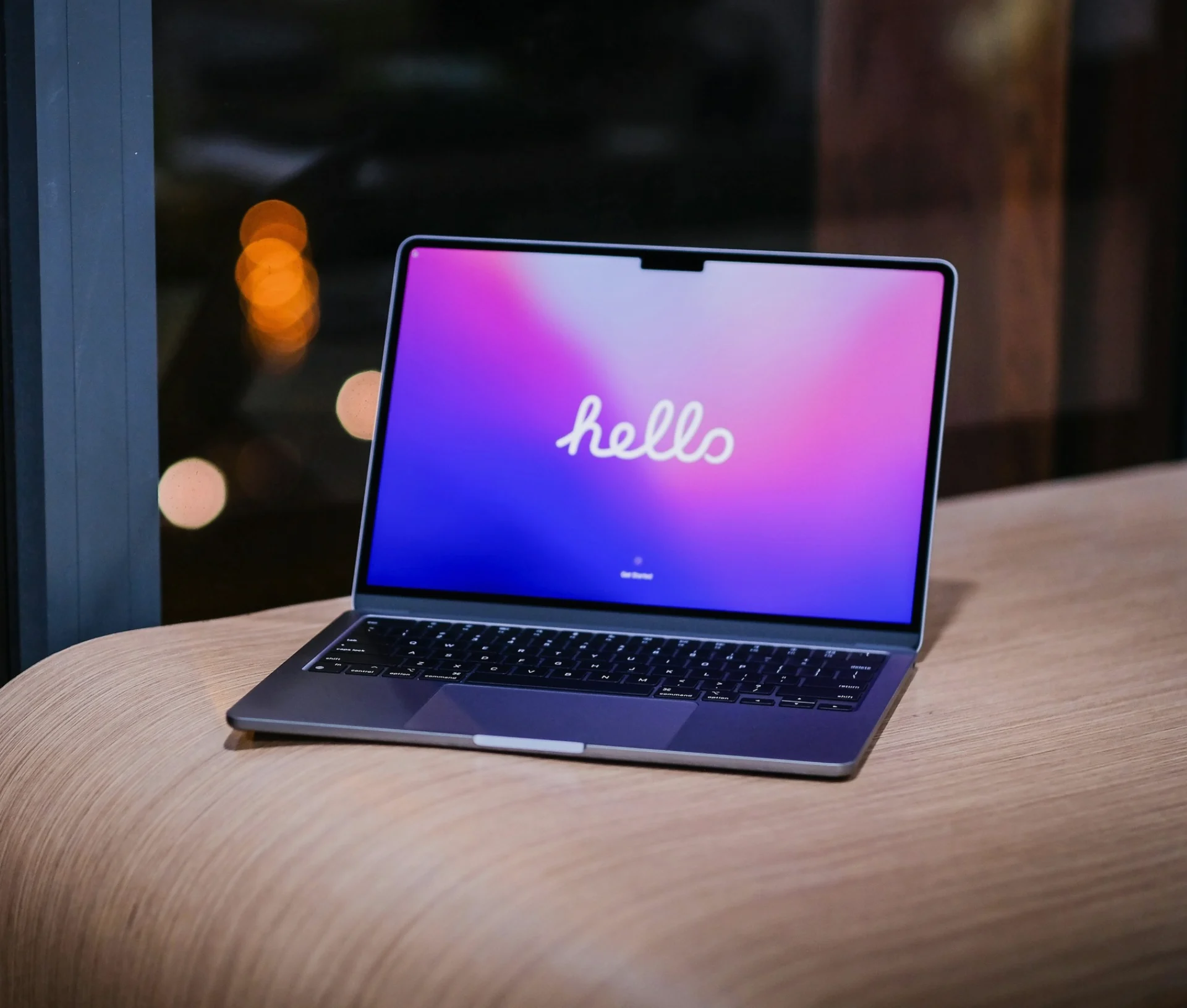
When a business moves its Macs into new device management, the usual way to do it is a wipe and re-enrolment. Everything on the Mac is erased, and it comes back with a clean, standard setup that matches everyone else’s.
For staff, that means anything that only lived on their Mac is gone once the wipe runs. Work files need to be in the business’s cloud storage, browser passwords and bookmarks need saving somewhere that survives, and each person needs to sign out of their Apple Account. IT puts back the rest.
Why businesses wipe and re-enrol their Macs
The most common reason is a move to new device management (DMS, formerly MDM), often alongside a change of IT provider. For our clients, that’s usually Addigy. A wipe gives every Mac the same security settings, the same apps and the same enrolment through Apple Business, which is hard to achieve by tidying up years of individual setups.
Apple has made this easier. Macs on macOS 26 or later that are already in Apple Business can move between DMS platforms without being erased. We still recommend a wipe in plenty of cases: older Macs on earlier versions, Macs that were never added to Apple Business, or a fleet where every machine was set up a little differently. We’ve inherited enough of those fleets to know a clean start usually saves time within the first month.
What a wipe takes with it
The simplest way to think about it is the lost laptop test. If your Mac were left on a train tomorrow, what would you lose? Whatever the answer is, that’s what a wipe takes too.
For most people it’s the files saved to the Desktop or Downloads “just for now”, documents that never made it into the shared drive, and anything a browser kept only on that Mac. Pick one business store for everything, whether that’s Dropbox, OneDrive or SharePoint, and get staff to put their work there before the day.
Time Machine is the tempting shortcut, and for a managed fleet we’d steer away from it. Restoring a Time Machine backup brings back the old apps, settings and clutter, which undoes the clean setup you’re wiping for. It also leaves company files sitting on a personal external drive, somewhere the business can’t see or protect.
| Item | What IT restores | What staff need to do first |
|---|---|---|
| Business files in the company cloud store | Available again as soon as the person signs in | Check everything is actually in there |
| OneDrive (if in use) | Resyncs after sign-in | Make sure syncing has finished |
| Browser passwords | Not restored | Move them to the company password manager, such as 1Password, or confirm browser sync is on |
| Bookmarks | Not restored | Export them, or confirm browser sync is on |
| Browser extensions | Not restored | Note the names to reinstall later |
| iCloud content | Stays in the Apple Account it's saved to | Check whether it's a personal or work account |
| Wi-Fi | Reconnected through the DMS | Nothing to write down |
| Business apps | Reinstalled through the DMS | Tell IT about anything unusual you rely on |
| Local files on the Desktop or in Downloads | Gone | Move anything you need to the cloud store |
The things that catch people out
Staying signed in to an Apple Account. Signing out turns off Find My and releases Activation Lock, so the Mac can be set up straight away. It also keeps someone’s personal iCloud from being tied to a company machine. It takes a minute, and it’s the step most often missed on the day.
Personal and work iCloud mixed. Some people have years of work documents in a personal iCloud Drive. Those files won’t vanish in the wipe, but they’re in the wrong place, and the handover is a good moment to move them into the business store.
External drives and unusual setups. Audio libraries, archived projects on a drive in a drawer, a specialist plug-in licensed to one machine. These need a one-to-one conversation with IT before the day, because general advice won’t cover them.
Over-preparing. Wi-Fi passwords, printers and standard apps all come back through the DMS. Staff can skip writing those down.
What a well-run wipe looks like
Most of the risk sits in the week before, and it’s mostly about communication. On a recent migration we ran for a client, we picked one cloud store for everything and gave staff a single page with their checklist. A short briefing explained the why, timed reminders went out during the week, and a final “before you leave tonight” message landed the evening before the wipe. That sequence did most of the work.
It’s a lot to coordinate alongside the day job, and it’s the part we’re asked to take on most. If you’re planning a move to new device management, we’ll plan the wipe, the staff comms and the re-enrolment on your behalf, so your team turns up to a working Mac with nothing missing.
Related articles
- How to migrate your Mac fleet from Jamf to Apple Business DMS
- After 30 Mac deployments: the prerequisites nobody warns you about
- Apple deployment checklist
FAQs
Will I lose my files when my Mac is wiped?
You’ll lose anything saved only on the Mac, such as files on the Desktop or in Downloads that aren’t synced. Files in your business’s cloud storage are untouched and come back when you sign in. Check that your work is in the cloud storage before handover, because a wipe can’t be undone.
Do I need a Time Machine backup before my Mac is re-enrolled?
We wouldn’t use one. Restoring Time Machine brings back the old settings and apps the wipe is meant to clear, and it leaves company files on a personal drive. Put your work in the business cloud store instead, and talk to IT about anything that won’t fit there.
Why do I need to sign out of my Apple Account first?
Signing out turns off Find My and releases Activation Lock, which would otherwise stop the Mac from being set up for its next life straight away. It also keeps your personal iCloud separate from a company machine. It takes about a minute in System Settings.
What happens to my apps and settings?
Business apps, Wi-Fi and security settings come back automatically through your device management. Personal preferences, such as your Dock layout or browser extensions, need setting up again. If you rely on something unusual, like a specialist plug-in, tell IT before the day so it’s ready.