Macs bought from a retailer in the Black Friday sales won’t appear in Apple Business (formerly Apple Business Manager) on their own. You can still add them with Apple Configurator on an iPhone, but do it before anyone sets them up, because a Mac that’s already been set up has to be erased first.
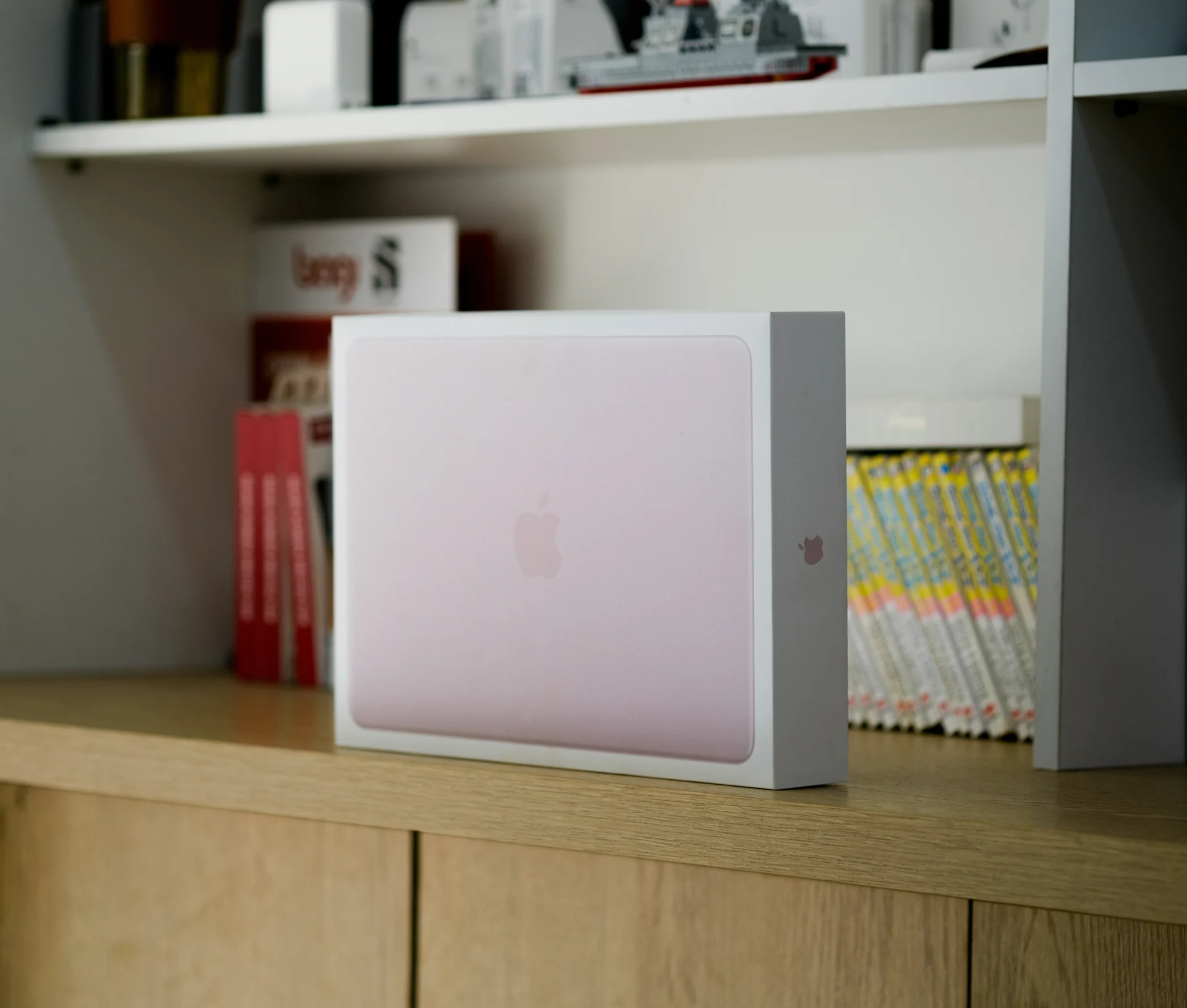
Picking up five MacBook Airs at a Black Friday price is a sensible buy. Five MacBook Airs holding client files with nobody managing them is a different thing, and the gap between the two is about ten minutes per Mac, ideally done before the boxes reach anyone’s desk. The same steps work for anything you buy in the Boxing Day or January sales.
Why don’t sale-bought Macs show up in Apple Business?
Apple only adds devices to your Apple Business account automatically when they’re bought from Apple, an Apple Authorised Reseller or an authorised mobile network operator, and the purchase is linked to your organisation. That’s how a Mac can arrive, be switched on and set itself up with your security settings, with nobody in IT touching it.
A Mac from a marketplace, a high-street shop or a Black Friday deal arrives as a consumer device. Apple Business has no record of it, so your device management has no way to take control of it.
Does it matter where the deal was?
Where you bought it is what counts. A full-price Mac from a consumer website behaves exactly like a discounted one: neither appears in Apple Business until you add it. Our guide to Apple Business as the foundation of Apple deployment explains how the business channel works, and what changed when Apple Business replaced Apple Business Manager covers the rename.
Can you still add them?
Yes. Apple lets you add Macs, iPhones and iPads manually with Apple Configurator, even when they weren’t bought from Apple or a reseller. Once added, they behave like any other device in Apple Business, with supervision and enrolment in your device management.
What you need before you start
- An iPhone running iOS 16 or later, with the free Apple Configurator app installed.
- An Apple Business user who has permission to manage devices.
- Macs with Apple silicon or the Apple T2 Security Chip, running macOS 12.0.1 or later. Every Mac sold new in 2026 has Apple silicon, so a new Mac meets this.
- Power for each Mac, and an internet connection: the iPhone’s Wi-Fi, a network configuration profile, or an Ethernet cable.
How to add a Mac to Apple Business, step by step
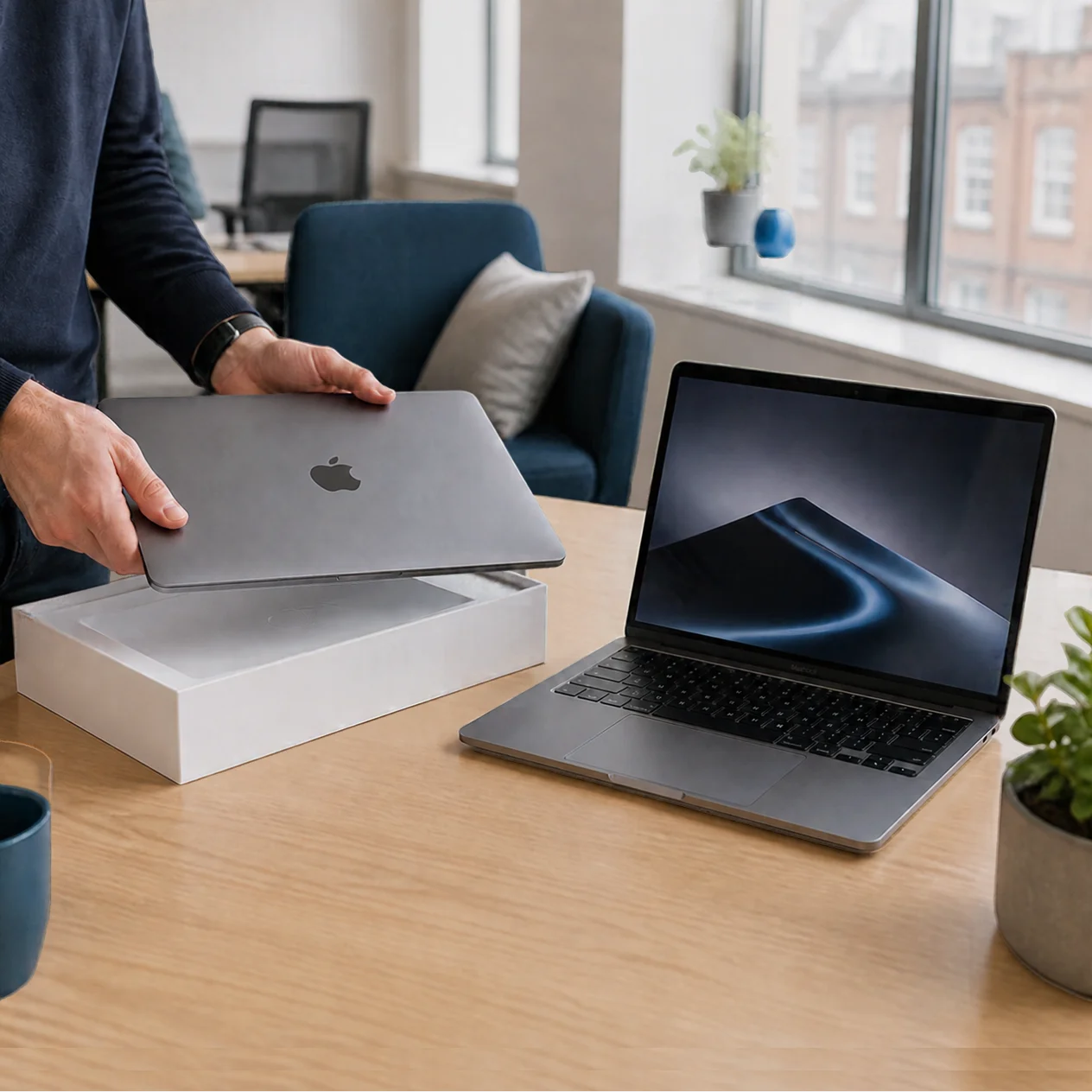
- Keep the Mac in its box until you are ready. Do not set it up.
- On the iPhone, open Apple Configurator. Sign in with the Managed Apple Account of a user who can manage devices.
- In Apple Configurator settings, choose how the Mac connects to the internet. Then choose the device management service to assign the Mac to.
- Connect the Mac to power. Turn on the Mac.
- Select a language. Click Continue. Stop when you see the Select Your Country or Region screen.
If you go past the country screen, restart the Mac and start again from step 4. Apple Configurator can only add the Mac while that screen is showing.
- Hold the iPhone near the Mac. Scan the image on the Mac’s screen. If you cannot scan it, click Pair Manually on the Mac, tap Manual Pairing on the iPhone and enter the six-digit code.
- Wait for the process to finish. Click Shut Down.
- In Apple Business, check that the Mac appears and is assigned to your device management service. Do this before you give the Mac to the user.
Step 3 matters most. If you skip the device management choice, the Mac lands in Apple Business in a group called “Devices added by Apple Configurator”, and someone has to assign it by hand later. Our article on whether you still need a third-party DMS now that Apple Business is free explains what that device management service does once the Mac is in.
What does the 30-day window in Apple Business Manager mean?
For 30 days after a manually added Mac is assigned to and enrolled in your device management (DMS, formerly MDM), its user can remove it from Apple Business, supervision and device management.
That’s Apple’s safeguard for devices that didn’t come through the business channel. It’s also a gap. Someone leaving in their first month, or someone curious about the settings, could take the Mac out of management, and you might not notice until it stops reporting in. After 30 days, the Mac behaves like any other managed device.
How do you close the gap?
- Hand the Mac over only once you’ve confirmed it’s enrolled in your device management.
- Give people standard accounts, and keep administrator accounts for IT.
- Check the Mac’s enrolment status in your device management a few times during the first month.
What if someone has already set the Mac up?
It has to be erased before it can be added. On a new Mac, that’s a few minutes’ work. On one someone has used for a week, it means backing up their files and setting everything up again, which is the strongest argument for acting before the boxes are opened.
- Back up anything the person needs to keep.
- On the Mac, open System Settings. Click General, then Transfer or Reset.
- Click Erase All Content and Settings. Enter the administrator details.
- Follow the instructions on the screen. Wait for the Mac to restart.
- Start again from step 5 of the steps above.
If you don’t have someone in-house to do this, our Apple business IT support team can take it off your hands.
Is buying in the sales still worth it?
Often, yes. A discount on a few Macs is real money, and adding them yourself is quick once you’ve done one. But buying through Apple’s business channel gives you things a sale doesn’t: Macs that enrol in Apple Business automatically, invoicing in your company’s name, and AppleCare for Business options. If spreading the cost is the main appeal of a sale, Apple Financial Services can do that too, and our article on leasing versus buying with Apple Financial Services compares the two.
When a sale purchase makes sense
One or two Macs, an urgent new starter, and someone confident enough to follow the steps above.
When it doesn’t
A full fleet refresh, no in-house admin, or a team that needs Macs shipped straight to people’s homes. Zero-touch deployment through the business channel handles that far better, as we explain in how zero-touch deployment is solving the agency onboarding crisis.
What should you do before the boxes arrive?
Three things, all quick:
- Check who holds the Apple Business administrator role, and that they can sign in.
- Install Apple Configurator on a work iPhone, and sign in to it.
- Put time in the diary to add the Macs before anyone gets theirs.
Bought Macs in the sales and don’t want to set them up yourself? Send them to us, and we’ll add them to Apple Business, connect them to your device management and get them ready for your team. Have a look at our Apple Business IT support to get started.
Related articles
- Apple Business Manager: the foundation of scalable Apple deployment
- Do you still need a third-party MDM now that Apple Business Manager is free?
- Lease vs. buy: why Apple Financial Services is the smartest way to scale in 2026
FAQs
Can I add a Mac bought from Amazon or Currys to Apple Business?
Yes. Apple lets you add Macs bought from any retailer using Apple Configurator on an iPhone, as long as the Mac has Apple silicon or a T2 chip. The Mac must not have been set up yet. If it has, erase it first with Erase All Content and Settings, then add it.
Do I need a Mac to use Apple Configurator?
No. Apple Configurator for iPhone can add Macs, iPhones and iPads to Apple Business. You need an iPhone running iOS 16 or later and an Apple Business account with permission to manage devices. There’s also a Mac version, but it can’t add Macs; that’s done from the iPhone.
What is the 30-day provisional period?
For 30 days after a manually added device is assigned to and enrolled in your device management, its user can remove it from Apple Business, supervision and device management. After that, it behaves like any other managed device. Checking enrolment status during the first month closes the gap.
Can I add an older Mac to Apple Business?
Only Macs with Apple silicon or the Apple T2 Security Chip, running macOS 12.0.1 or later. That covers most Macs from 2018 onwards, and every Mac sold new today. Older Intel Macs without the T2 chip can’t be added with Apple Configurator.
Will adding a Mac to Apple Business erase it?
A new, unopened Mac loses nothing, because there’s nothing on it yet. A Mac that’s already been set up has to be erased before it can be added, so back up anything the person needs first. That’s why it’s worth adding Macs before anyone opens them.