Remote and hybrid work introduced a problem nobody talks about enough: the micro-friction of switching between devices. Copying a link on your phone and emailing it to yourself so you can open it on your Mac. Hunting for a USB cable to use your phone as a webcam. AirDropping a photo to your laptop because you can’t paste it directly.
Each instance takes seconds. Across a team of twenty, across a full week, those seconds become hours of lost momentum.
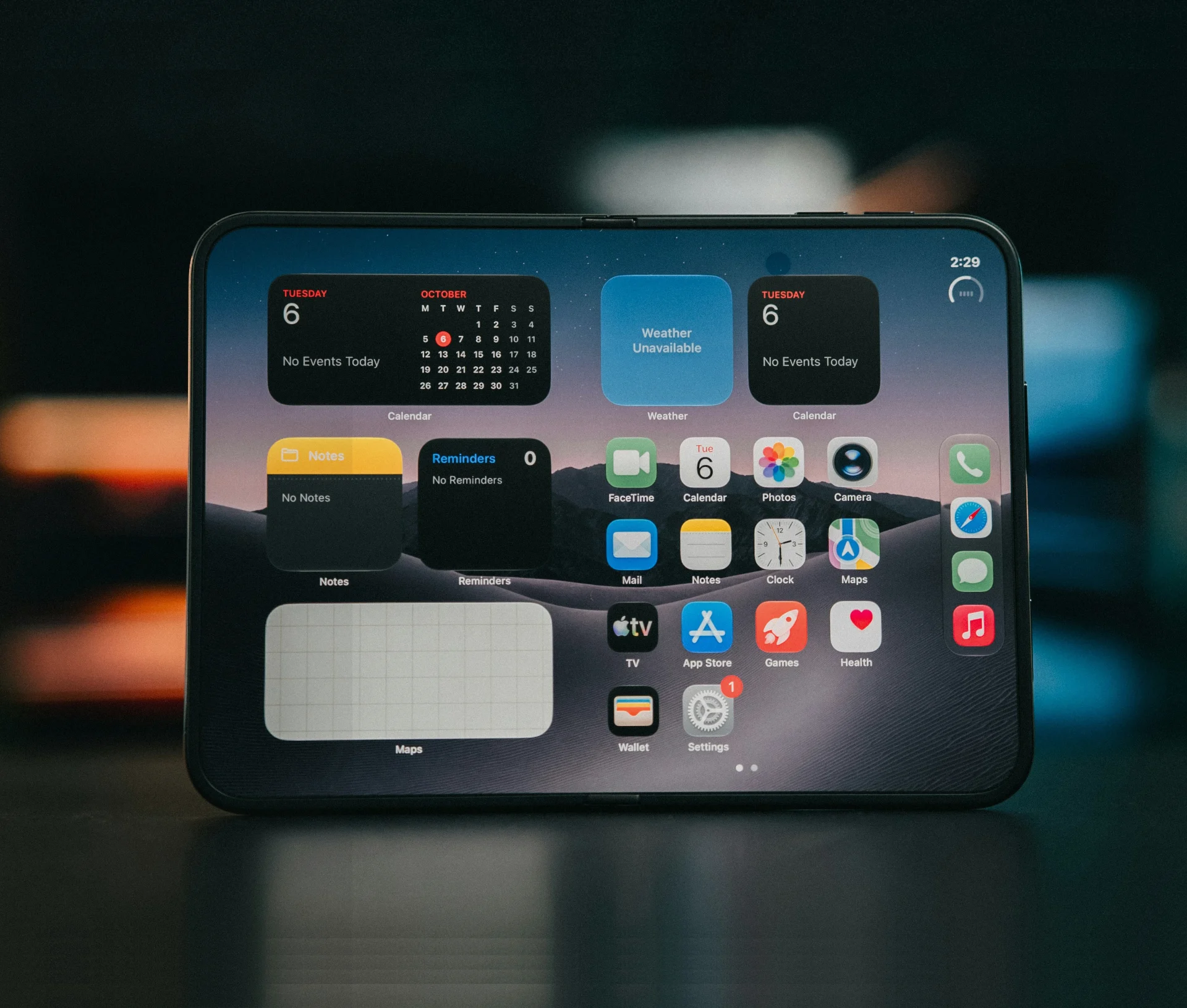
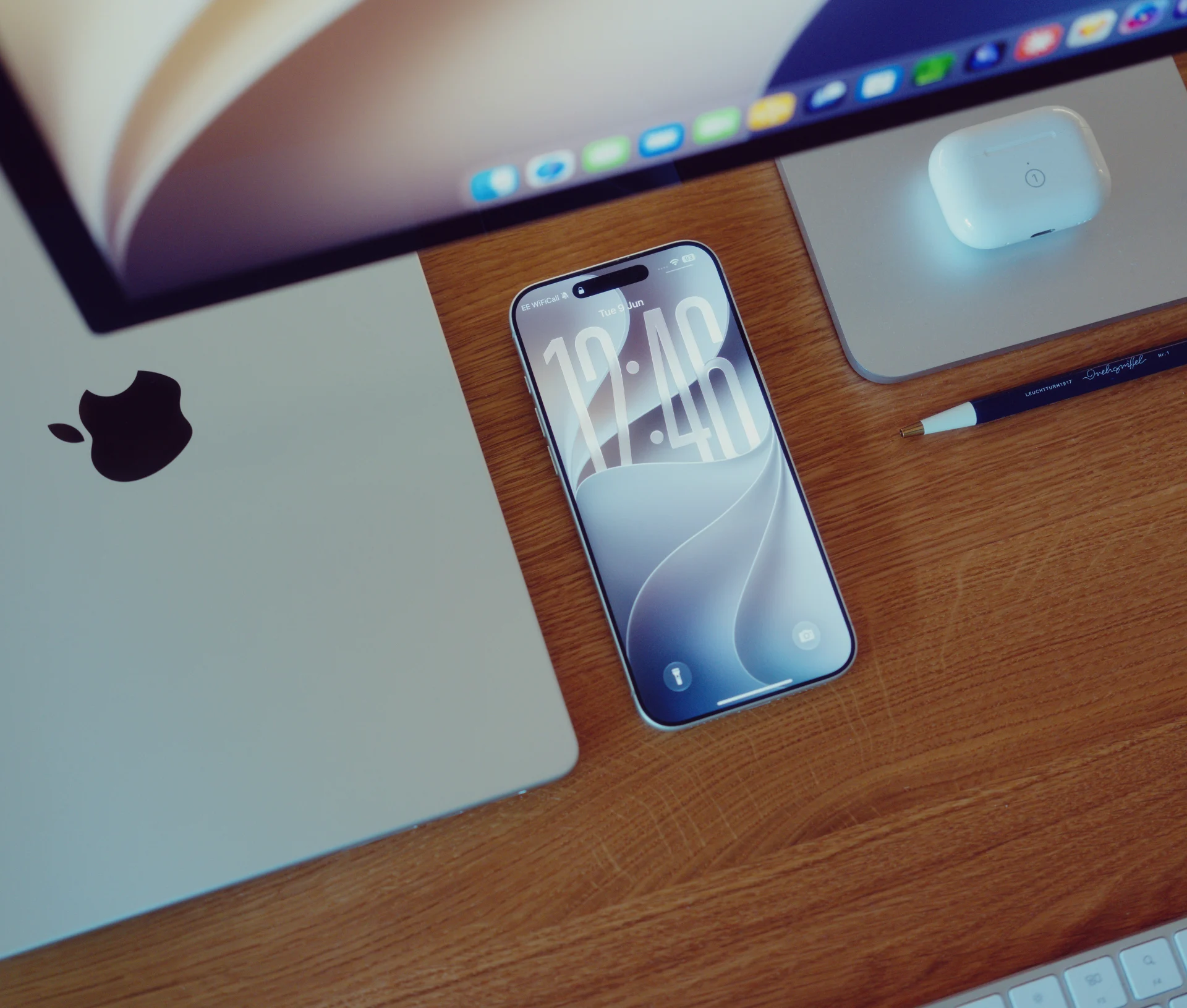
Apple’s Continuity features were designed to eliminate exactly this kind of friction. Universal Clipboard, Continuity Camera, Handoff, and AirDrop work together to make the boundaries between devices disappear. But most teams treat them as nice-to-have extras rather than the productivity infrastructure they actually are.
Here’s what they do, why they matter for stress-free remote working, and how to make sure they’re actually working across your team.
What Apple continuity features actually include
Apple groups several features under the “Continuity” umbrella. The ones most relevant to remote teams are:
Universal Clipboard – lets you copy text, images, photos, and files on one Apple device and paste them on another. Copy a URL on your iPhone, paste it into a document on your Mac. No emailing yourself, no AirDrop required.
Continuity Camera – lets you use your iPhone as a webcam for your Mac, wirelessly. Since iPhone cameras are significantly better than built-in MacBook cameras, this means better video quality in every call without buying external hardware.
Handoff – lets you start a task on one device and pick it up on another. Begin drafting an email on your iPhone during a commute, then finish it on your Mac when you sit down. The app icon appears in your Dock automatically.
AirDrop – provides instant, wireless file transfer between Apple devices. It’s faster and more reliable than email attachments for large files, particularly images and design assets.
Why continuity matters more when your team works remotely
In an office, friction is absorbed by proximity. You can lean over and show someone your screen. You can walk to a meeting room where the camera is already set up.
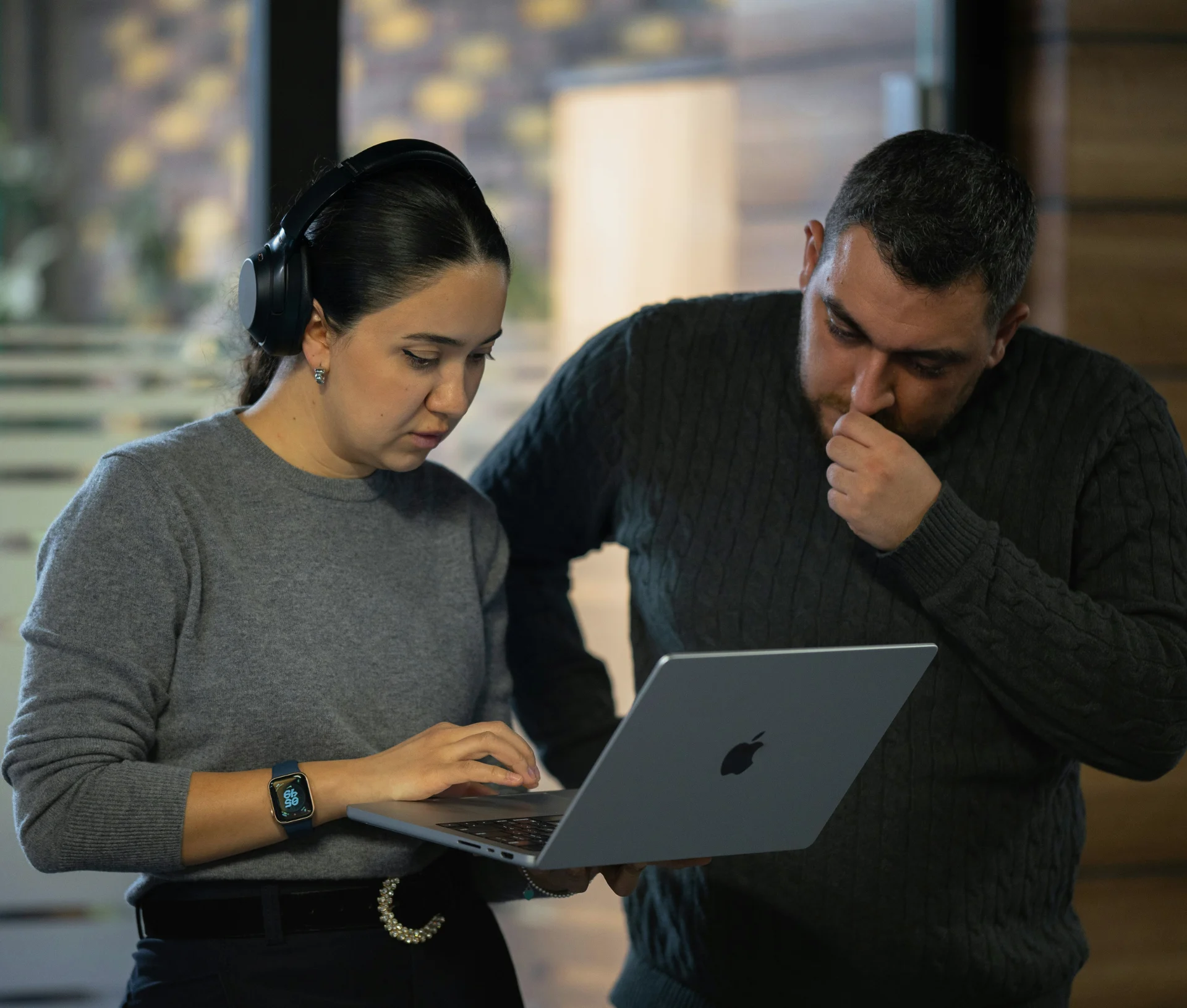
Remote teams don’t have that luxury. Every device switch, every file transfer, every “hang on, let me just send that to my laptop” moment adds drag. Over time, that drag makes people avoid the small, useful actions – sharing a quick screenshot, switching to a better camera, picking up a half-written message – that keep collaboration fluid.
Continuity features remove the drag. They make multi-device workflows feel like a single, continuous workspace. For hybrid teams, especially, where people shift between home, office, and mobile throughout the day, this is the difference between a setup that works and one that quietly frustrates everyone.
What this means for your business
If your team is switching between Mac, iPhone, and iPad throughout the day and those devices aren’t talking to each other seamlessly, you’re losing time at every handover. The fix isn’t new software. It’s configuring what you’ve already got.
How to make sure continuity is working across your team
These features should work out of the box, but in practice there are a few common reasons they don’t.
- Same Apple Account. All devices must be signed into the same Apple Account. This is the most common failure point, particularly with devices provisioned through IT that may use a separate managed Apple Account.
- Wi-Fi and Bluetooth enabled. Both need to be active on all devices. Continuity Camera in particular requires Bluetooth for the initial connection.
- Handoff toggled on. Check System Settings > General > AirDrop & Handoff on Mac, and Settings > General > AirDrop & Handoff on iPhone/iPad.
- Devices within range. Universal Clipboard and Continuity Camera work best when devices are within standard Bluetooth range (roughly 10 metres).
- Up-to-date software. Continuity Camera requires macOS Ventura or later and iOS 16 or later. Universal Clipboard requires macOS Sierra or later and iOS 10 or later, but later versions are more reliable.
For teams managed through Apple Business Manager, it’s worth checking that MDM profiles aren’t inadvertently restricting AirDrop or Handoff. This is a surprisingly common issue that usually surfaces as “it just doesn’t work” support tickets.
What to do
Run through that checklist across your team’s devices. If you’re managing more than a handful of Macs and iPhones, it’s worth doing this as a structured audit rather than leaving it to individuals. One misconfigured Apple Account or a Handoff toggle left off can quietly break the whole chain.
Continuity Camera: the free webcam upgrade your remote team is missing
This deserves its own section because most people don’t realise how good it is.
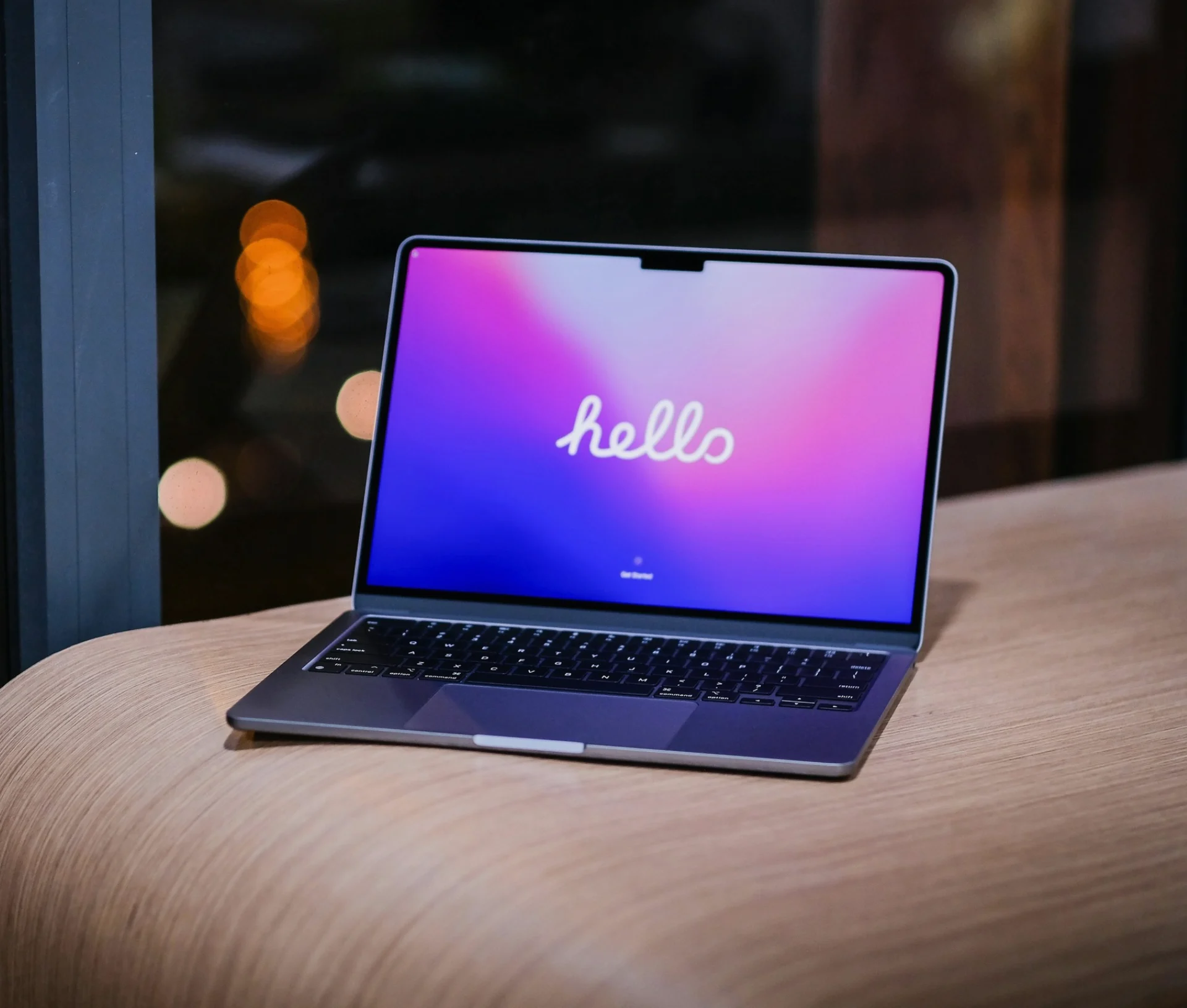
Built-in MacBook cameras have improved, but they still can’t compete with an iPhone rear camera. Continuity Camera lets your team use their iPhone, mounted on a stand or even just propped up, as a wireless Mac webcam in FaceTime, Zoom, Teams, and Google Meet.
It also unlocks features like Centre Stage (which keeps you framed as you move), Desk View (which shows a top-down view of your desk), and Studio Light (which improves lighting without additional hardware).
For client-facing calls, this is a meaningful quality upgrade at zero cost. All you need is an iPhone, a Mac, and a simple mount.
Small friction, compounding cost
None of these features are revolutionary in isolation. Pasting across devices saves a few seconds. A better webcam doesn’t win a pitch on its own. Picking up a draft email on your Mac is convenient, not transformational.
But stress-free remote working is built on reducing friction at every small interaction. The organisations that get this right don’t do one big thing differently. They eliminate a hundred small annoyances that everyone else just tolerates.
Apple’s Continuity suite is one of the easiest ways to do that, and it’s already included in the hardware your team is using.
Get more from the Apple devices you already own
Most Mac-first teams are paying for features they’re not using. Continuity, Focus Modes, iCloud collaboration, built-in security tools – they’re all included, but they only work when they’re properly configured.
Our IT support and Apple specialists help businesses audit their current setup, fix the small configuration issues that cause daily frustration, and build an IT strategy that gets the most from the technology already on your desks.
Book a free Apple setup review →
Related articles
- How to Use macOS Focus Modes to Reduce Burnout and Protect Deep Work for Remote Teams
- The Mac Management Mismatch: Why Your Remote Team Needs a Remote IT Partner
- How Apple’s Productivity Tools Can Transform Your Business
FAQs
Does Universal Clipboard work between Mac and iPhone?
Yes. Universal Clipboard works between any combination of Mac, iPhone, iPad, and iPod touch, provided all devices are signed into the same Apple Account with Wi-Fi, Bluetooth, and Handoff enabled.
Can Continuity Camera work with Zoom and Microsoft Teams?
Yes. Continuity Camera is recognised as a standard video input, so it works with virtually any video conferencing app on macOS, including Zoom, Teams, Google Meet, and FaceTime.
Why isn't Handoff working between my devices?
The most common causes are: devices not signed into the same Apple Account, Handoff being disabled in settings, Bluetooth or Wi-Fi being turned off, or devices running outdated software. Check each of these in System Settings on your Mac and the Settings app on your iPhone.